Click the Onboarding menu to complete and save your onboarding information.
Each section you see will have fields for you to complete, this might be ticking boxes, entering text or evening signing the page. Note: You might not be able to see all sections because the system will only give you access to the sections that require your input.
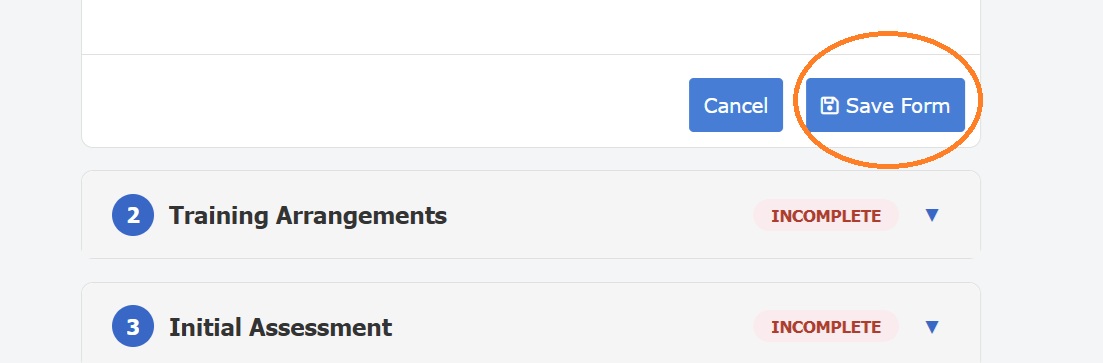
Click 'Save Form' on any section to save your progress.
You will then be taken to an overview of your progress. It is safe to logout from here if you want to return later to complete more of your onboarding. Alternatively, you can click:
- 'Go Back' to complete more of the onboarding sections, or
- 'Onboarding Complete' click this if all sections are at 100%, or once you have completed all the fields you can. Your training centre will then be notified.
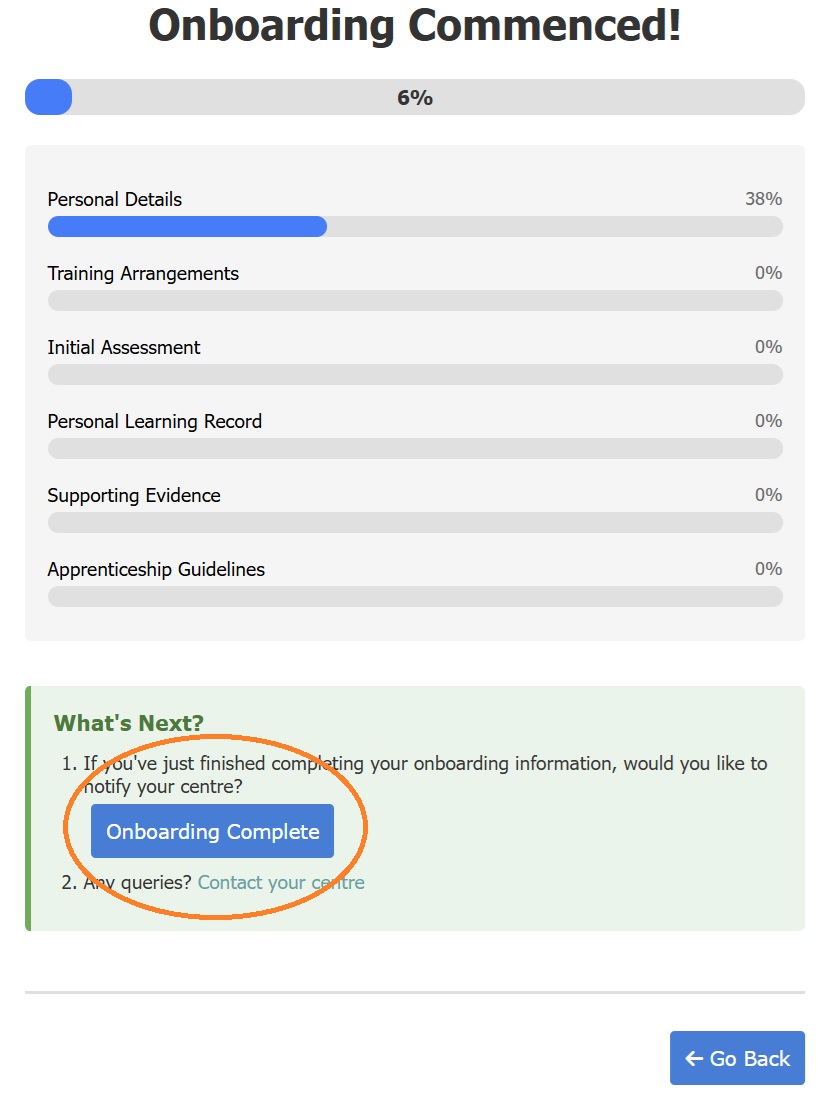
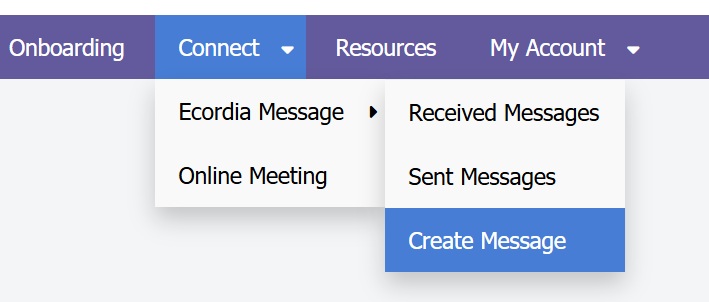
If you get stuck at anytime, you can also message your training centre by clicking on option 2 or go to the Connect/Ecordia Message/Create Message menu.
Was this article helpful?
That’s Great!
Thank you for your feedback
Sorry! We couldn't be helpful
Thank you for your feedback
Feedback sent
We appreciate your effort and will try to fix the article