The Interactive Progress Report allows assessors to provide a comment each month against each candidate they have been assigned to as the primary assessor. The assessor can only add or edit a comment in the current month, comments for previous months are locked once the month has passed. Users with the following roles can access the report and view all comments which the assessor has saved, and the report can be exported in CSV format, for viewing in Excel:
Assessors
IQAs
Learning Supports Admins
Quality Assurers
SV/EV/EQA
Tutors
The following data set is included in the Interactive Progress Report, but excludes candidates with a portfolio status of Complete, Ended, Suspended, Archived:
Centre Name
Candidate First Name
Candidate Last Name
Course Code
Columns for each aim progress (based on aim type) i.e Functional Skills, QCF, RQF, Tech Cert, APPST, ERR
Previous months' comments
Current months' comments
Any of the following data can included when setting up the report:
Candidate Group Name
Candidate Region
Contact Log Type Progress
Course Framework Code
First Login
Last Login Time
Percentage Increase = Portfolio % complete minus the highest % in the previous calendar month. Unless there was no change in previous month, in which case progress increase would be 0.
Portfolio Expected Progress
Portfolio Percent Complete
Portfolio Target Completion Date
Portfolio Target Start Date
Primary Assessor Name
QCF Group
Qualification Number
Registration Data - this will display the learning aim code and registration date for any registrations which have been recorded for the candidate.
Workplace
Custom Fields
To add a comment to the Interactive Progress Report:
1. Go to "Reports" tab then "Choose", and select the Interactive Progress Report
2. Click ‘Generate’ to create your report (remember, only candidates who you are assigned to as the primary assessor will appear in the report)
3. There is a row for each candidate, showing headline information, and a column for the current and previous month on the right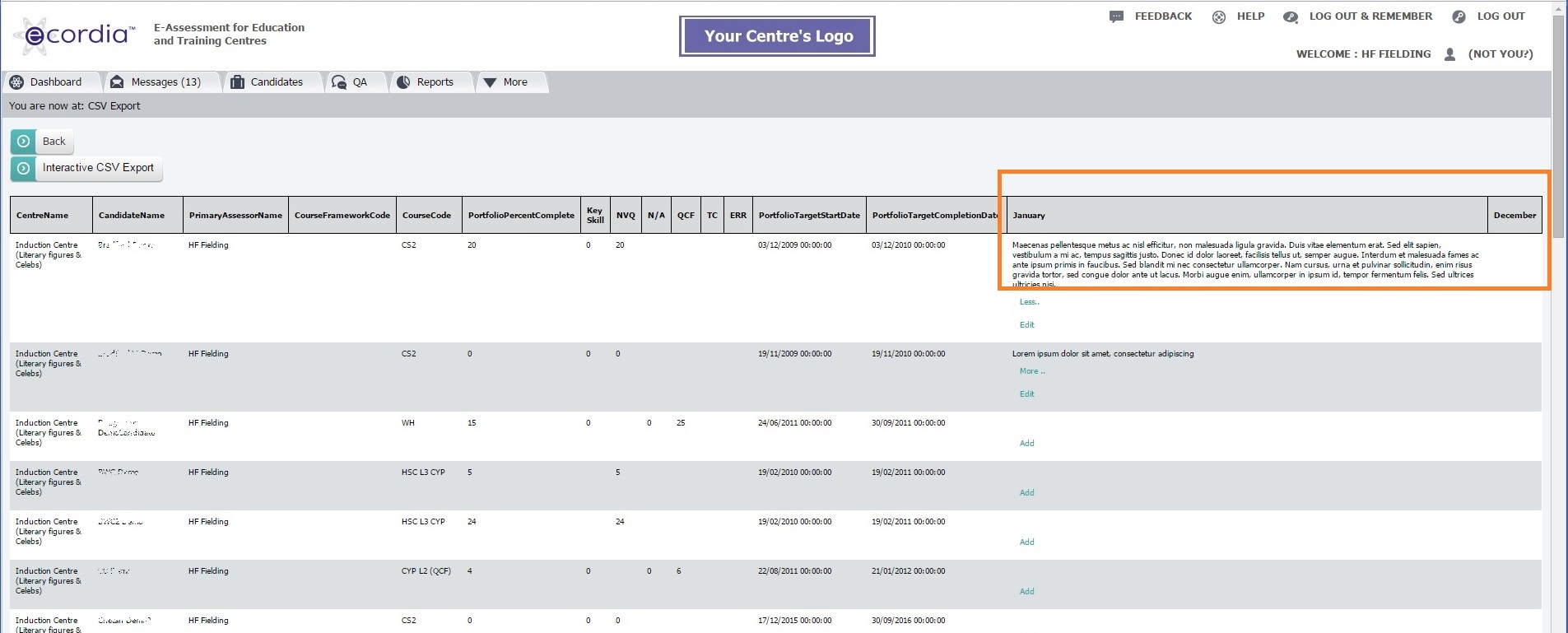
4. Click ‘Add’ to create a comment, and once a comment is saved, click ‘Edit’ to update the comment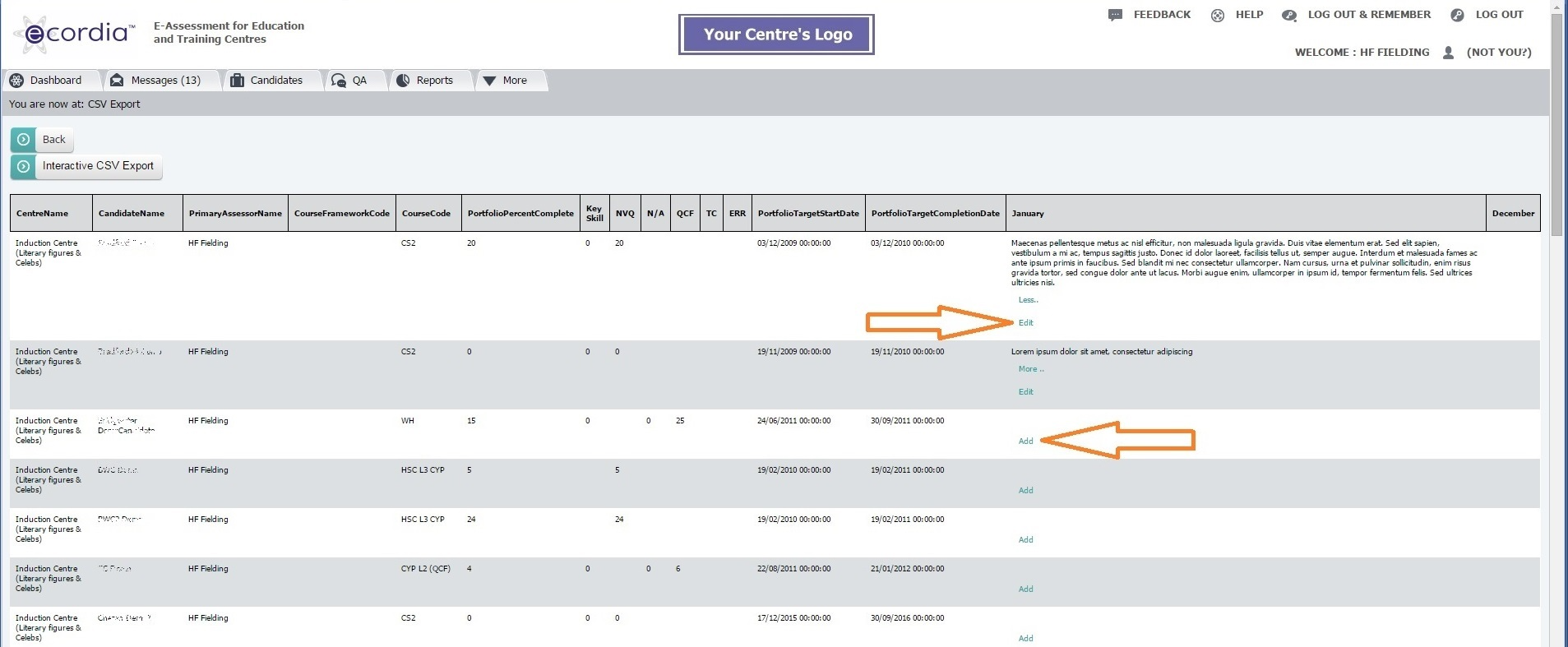
5. Once a comment is saved, use the ‘More’ or ‘Less’ options to view long comments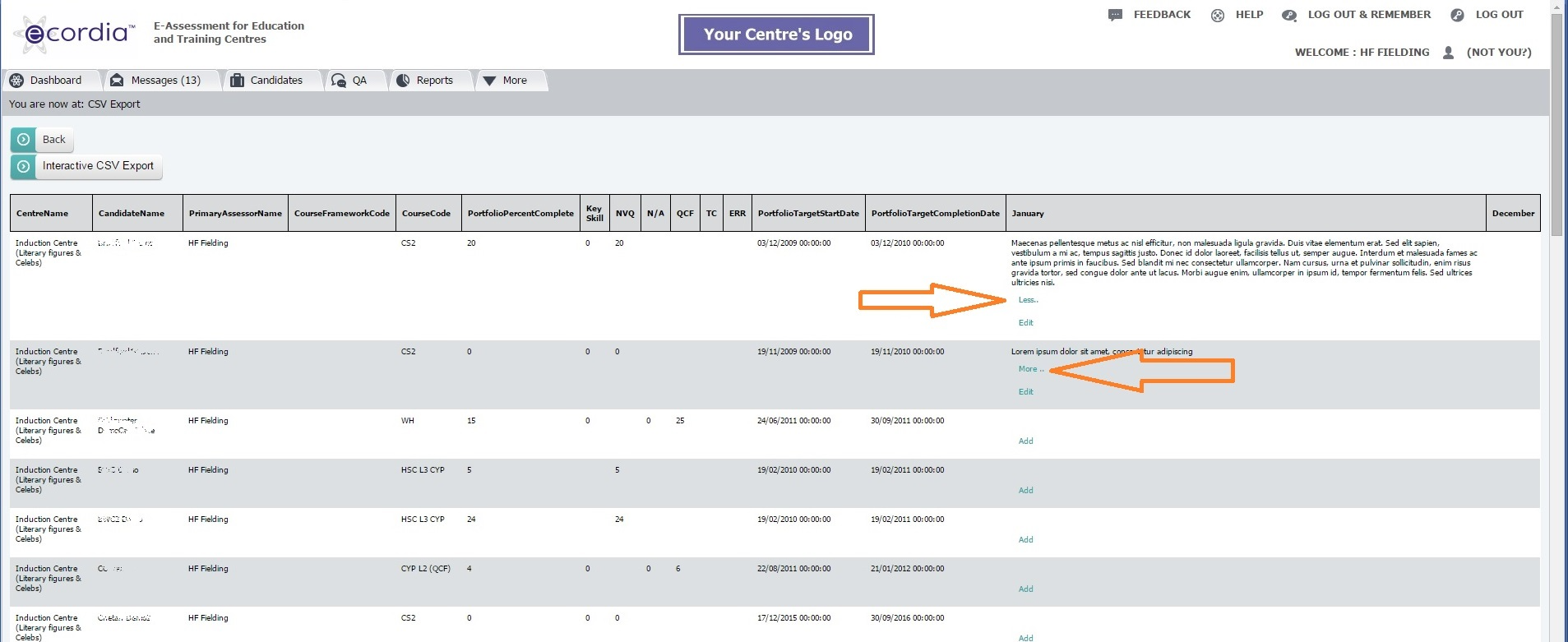
6. Use the ‘Interactive CSV Export’ button to export the report in an excel compatible format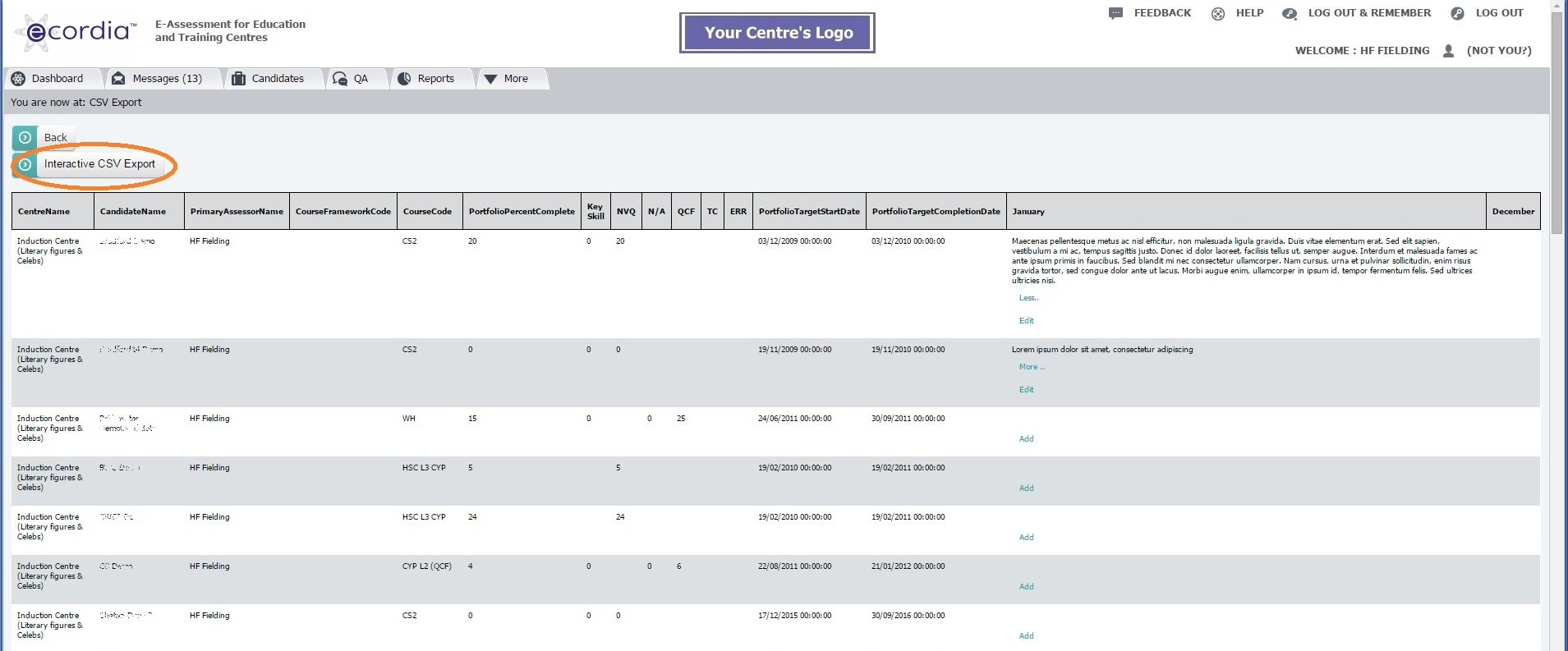
Was this article helpful?
That’s Great!
Thank you for your feedback
Sorry! We couldn't be helpful
Thank you for your feedback
Feedback sent
We appreciate your effort and will try to fix the article