 How to activate this feature: How to activate this feature:Once subscribed to this feature (contact support@ecordia.co.uk for more information on subscription fees) an administrator at your centre will need to choose which users can perform Plagiarism Checks by selecting one of more of the following options when modifying a course via Course Admin: Allow Assessors to run Plagiarism Scans Allow Candidates to run Plagiarism Scans Once one or more of the above have been selected, users can begin preforming plagiarism checks. |
1.Running a plagiarism check on evidence attachments
When a user can performing plagiarism checks will be dependent on the evidence status, as follows:
Candidate - when evidence status is Preparing or Action Required
Assessor - when evidence status is Preparing, Action Required, or Assessing
Quality Assurance Coordinator - Any evidence status
Note: Only the following file formats are supported for plagiarism checking: docx, doc, txt, rtf
1.1Clicking on the  icon located near the top right corner of an attachment icon, or at the top of the evidence data, if you have typed evidence directly into Ecordia. Clicking this icon will commence the plagiarism check, and the colour of the icon will change from grey to amber.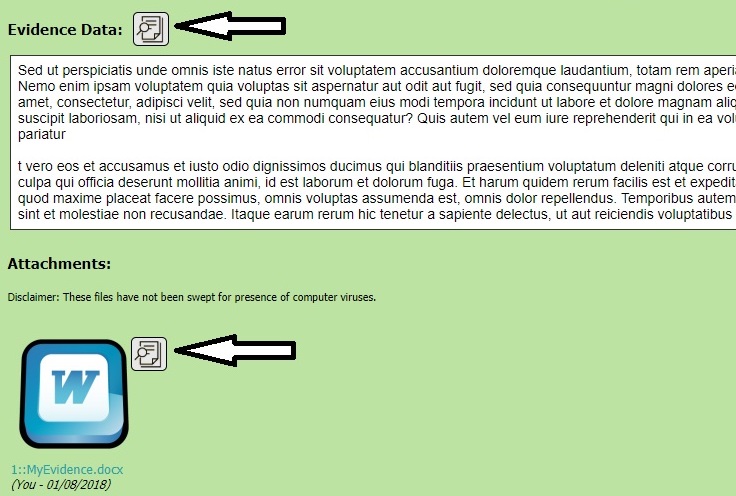
1.2You will receive an Ecordia Message once the check is complete, and the plagiarism report is available for download, the colour of the square will have changed from amber to green.
2. Submitting a revised evidence attachment
If your evidence attachment is deemed to be significantly plagiarised, you can upload a new version to your evidence, but when doing so, be sure to delete the plagiarism checks on any previous versions otherwise your new version will also be checked against your previous version which could result in an unfair plagiarism report.
2.1Click on the icon for the previously checked document, and click 'Delete' to remove the document from the Plagiarism database
2.2Click 'Files'
2.2Upload the new attachment
3. Running a plagiarism check on evidence data
3.1Clicking on the icon located near the top left corner of the evidence data to commence the plagiarism check,
and the colour of the square will change from grey to amber. 3.2You will receive an Ecordia Message once the check is
complete, and the plagiarism report is available for download, the colour of the square will have changed from amber to green.
4. Downloading a plagiarism report
4.1Click on the green icon located near the top right corner of the attachment icon or evidence data, then follow the onscreen instructions.
5. Viewing a plagiarism report
5.1Complete step 4.1 above. The plagiarism report will then be generated in PDF format (click 'Download Scan Report'), or it can be viewed through the Turnitin Interactive Report Viewer . Both are identical in content to the original document but with any matches marked and annotated. Potential matches are highlighted along with details about the sources. A Plagiarism Scan Result is also displayed as a percentage (%) 0-100% . 100% meaning the document has been entirely plagiarised.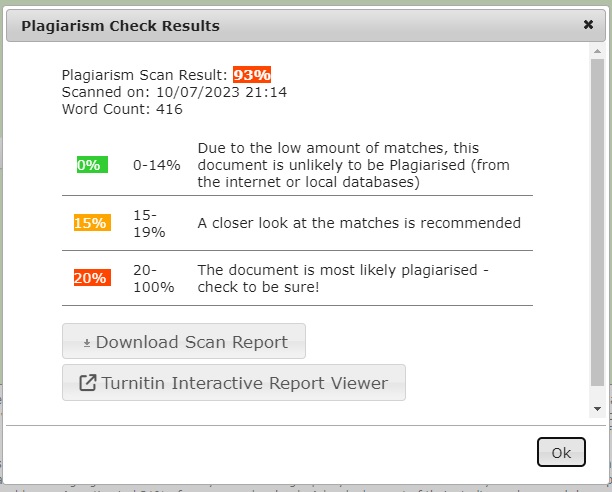
Was this article helpful?
That’s Great!
Thank you for your feedback
Sorry! We couldn't be helpful
Thank you for your feedback
Feedback sent
We appreciate your effort and will try to fix the article