October 2026:
Online Tests: The passmessage will be copied into the assessment feedback table when a pass result is awarded.
OTJ Log report - The portfolio status has been added to the data set when exported to Excel
Reorder Files: If more than one file is uploaded to the evidence page, then users will be able to reorder the files.
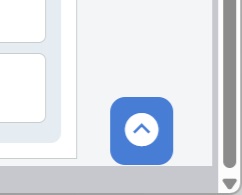
Scroll to Top control has been added to portfolios. The control is located in the bottom right had corner of the page and can be used to quickly scroll up to the top of the page:
September 2026:
Selected units/aims on the portfolio front page have been enhanced to include links to evidence
Onboarding: Course administrators can now create Course/Apprenticeship Targets for a course by clicking 'Course Targets' on the course. This page allows the user to set out the course road map which is then used in the written agreement for each applicant. When imported into the written agreement, the targets are applied as text only to allow for variations on an individual bases where needed.
August 2026:
OTJ Logs: The progress bar is now being displayed when the portfolio goes live, allowing users to set the target prior to the first OTJ log being created. The OTJ progress bar can also be hidden by modifying the course and setting the target to null/empty. If the value is 0+ then the progress bar will be accessible from the portfolio front page for all candidates on the course.
July 2026:
This feature now supports the creation of the Apprenticeship/Learner Training Plan and Agreements, which each user can sign, then saved to PDF. Each time there are updates or changes, such as BIL or change of employer, the signatures can be requested again and saved to PDF again.
June 2026:
The June update included:
Hashtags in messages:
If a message is sent to a candidate and it contains hashtags to evidence or plans, they will now direct the candidate to those items in their portfolio.
Parent Centres can manage child centre Custom Fields
Employer access to assigned applicants
Allow Custom Fields with the same name if in a different section
Eligibility concerns can be flagged
Create Custom fields for specified courses only
May 2026
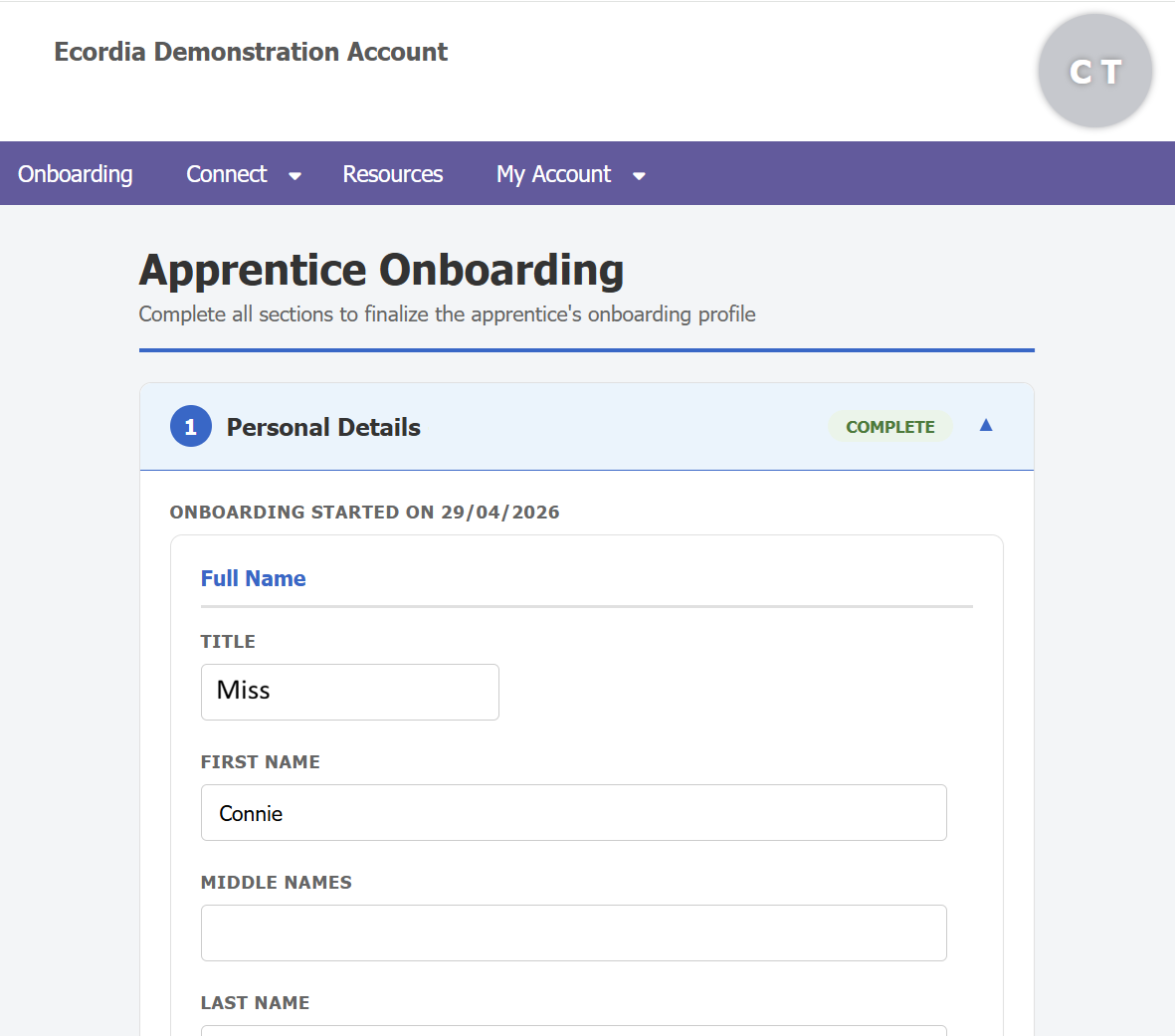
The May update included the first release of the Onboarding feature, which is designed to streamline the enrol process for applicants and reduce duplication of data collection and entry, and engage the applicant/prospective candidates with the process.
We also included updates to the OTJ logs feature, allowing the assessment team to approve entries made by candidates and the assessment team. Only approved entries are then used to calculate OTJ progress.
Breaks in Learning (BIL) are now better reflected in the Expected Progress bars, if the break in learning is more than 42 consecutive days.
All Online test answers are now be displayed to the assessment team, even for those set for automatic marking and automatic retakes.
Optimisation of the Interactive Progress Report.
April 2026
Additional option added to the edit evidence properties page, allowing the assessment team to choose whether the 'Relevant to Unit(s)' control is available on the prepare evidence screen. The default for this option is 'off' (not ticked), but can be easily switched on by ticking the option when adding an evidence type or by going to edit evidence properties on existing evidence.
Skills Scan is now an optional setting on each course, The default for this option is 'off' (not ticked) for all new course, but can be easily switched on by ticking the 'Enable Skills Scan' option when adding a new course, or can be switched on or off by clicking 'Modify' on an existing evidence.
Complete evidence and plans in completed portfolios is now displayed by default, so the user doesn't need to choose from the page filter options.
You can now see the date a user verified their email address for all email verifications since 1st May. To view when an email was verified, place your cursor over the 'verified' icon on the view user screen.
Was this article helpful?
That’s Great!
Thank you for your feedback
Sorry! We couldn't be helpful
Thank you for your feedback
Feedback sent
We appreciate your effort and will try to fix the article