This page is available to all users, and gives users access to resources dependant on the resource properties. Using hashtags e.g. #resource1, resources can be shared with users in plans, feedback and contact logs etc. The hashtag will provide a link to the user which they can click on to open a pop-up which will display the resource and the folders.
Users can search resources by resource number, key word or by linked item (i.e. a group name or course code).
All file reads are recorded, allowing centre-based staff to see the date and time of when a file in a resource has been accessed, and who accessed the file.
To view a file read, right click on a file in Resources and select the 'Audit Log' option, this will show when a file was accessed by your users.
You can view similar information for files in a portfolio by placing your cursor over the name, although only the most recent date is displayed, whereas in Resources you can view all dates and times for each user.
To add a resource you will require one of the following user roles:
CMS Course Administrator
Learning Support Administrator
Quality Assurer
1.1 Go to + in the menu and select ‘Add Resource’
1.2 Input the Resource name, and Resource description. If your description contains a hyperlink you can use the 'Rewrite links to open in a new window' option at the bottom of the page as required. A resource number will be assigned automatically in chronological order once saved.
1.3 To upload a file, click on the documents icon  , then right click on the Base Directory folder to add folders or upload files.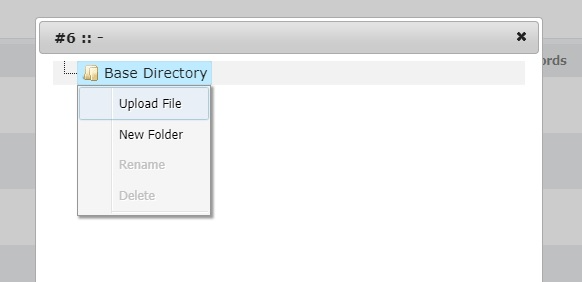
1.4 On uploading files, click ‘Add’ to upload and save the selected files to the Resource.
1.5 Select the 'Roles' tab in the sub-menu
1.6 Select the 'User' role
1.7 Click 'Save'
2. Access Settings for a Resource:
Once a resource has been uploaded, you need to decide who can access the resource.
2.1 Roles - If the resource is for all user:
2.1.1 Return to the Resources page and click on the settings icon  2.1.2 Select the 'Roles' tab in the sub-menu
2.1.3 Select the 'User' role
2.1.4 Click 'Save'
If the resource is intended only for users with one or more roles, tick these roles as required and click save.
2.2 Resource Links – Allows Centres to restrict access to a given Resource based on one or more of the following:
• Course the User is working towards
• Learning Aim(s) within their Course
• Unit(s) within their Course
• User
2.2.1 Return to the Resources page and click on the settings icon  2.2.2 Select the 'Links' tab in the sub-menu 2.2.3 Choose the type of link you want to make using the New Link of Type lookup and click ‘Search’.
2.2.3 Click the ‘Link’ button on the right to link the Resource to an item. Linked items will be moved to the top section of the screen. To unlink Resources simply click the ‘Unlink’ button located next to the linked part.
To link the Resource to other link types repeat from step 2.2.3 above
2.3 Keywords – Allows Centres to add keywords to help Users search Resources quicker.
2.3.1 Return to the Resources page and click on the settings icon  2.3.2 Enter the keyword in the 'New Keywords' field and click 'Add' 2.3.3 New and existing keywords will be listed above the new keyword field and can be removed by clicking the ‘Remove’ button.
2.4 Roles – Allows centres to restrict access to a Resource to specified User roles only. Until a role has been chosen Resources will only be available to LSAs and QACs. This setting will override all other links to the Resource. For example, a Resource linked to a Course will not be accessible to the Candidates on that Course until their Role is selected.
To allow specific Users to access a Resource:
2.4.1 Return to the Resources page and click on the settings icon  2.4.2 Select the 'Roles' tab in the sub-menu
2.4.3 Select the roles you want to have access to the resource
2.4.4 Click 'Save'
3. Adding to an Existing Resource:
3.1 Go to Resources, and locate the resource
3.2 Click on the documents icon  . Right click on the Base Directory or other folder as require to add folders and/or upload files.
3.4 On uploading files, click ‘Add’ to upload and save the selected files to the Resource.
4. Using the Document Manager to insert a resource link
4.1 Send a zip folder of the resource files you would like to use to support@ecordia.co.uk , which we will upload to your Document Manager
4.2 Once available, go to the Resource and click on the settings icon
4.3 Click 'Modify'
4.4 Place your cursor in the Resource Description area and click on the 'Document Manager' icon in the toolbar
4.5 Select the file, and set properties as required, then click 'Insert'
4.6 Go to step 4.4 to insert another resource, or 'Save' to update to publish.
5. Removing/deleting a resource from a folder
5.1 Go to Resources, and locate the resource containing the item you want to remove/delete
5.2 Click on the documents icon  . Right click on the folder containing the item you want to remove/delete.
5.3 Right click on the folder to be deleted and select 'Delete'.
Keywords: add resource, new resource, resources, course resource, link resource
Resource Notifications
This feature allows you to alert Users to a new Resource, or an update to a Resource. Notifications can be sent out by system message, or via a ‘Tracked Notification’ task which navigates the User to the Resource where the User can mark the Resource as ‘read’, which in turn removes the task from their task list.
1. Message Notifications:
1.1 Go to the Resource and click 
1.2 Click ‘Notifications Policy’
1.3 Select ‘Message Notification’ in the drop-down list
1.4 Click ‘Apply Policy’
1.5 Click on the Notifications tab, and click ‘Notify Now’. All Users who are listed on the Notifications page will receive a system message notifying them of the Resource number and name.
2. Tracked Notifications:
2.1 Go to the Resource and click 
2.2 Click ‘Notifications Policy’
2.3 Select ‘Tracked Notification’ in the drop-down list
2.4 Click ‘Apply Policy’
2.5 Click on the 'Notifications' tab, and click ‘Notify Now’. All Users who are listed on the Notifications page will receive a new task items which will navigate the User to the
Resource, where they can click ‘Confirm as Read’ to remove the task from their tasks. Users can also reverse the step by clicking ‘Mark as Unread’.
Keywords: resource alert, resource notification, resource update
Was this article helpful?
That’s Great!
Thank you for your feedback
Sorry! We couldn't be helpful
Thank you for your feedback
Feedback sent
We appreciate your effort and will try to fix the article