We hope you enjoy using Ecordia on your iPad, but if you experience any problems, please email support@ecordia.co.uk with full details.
Safari is the default/standard internet browser for the iPad, and is a "Go to" browser.
iPad - Taking a Screenshot
1. Locate the screen on the iPad that you want to take a screenshot of.
2. Simultaneously press the ‘On/Off’ switch and the ‘Centre Home’ button, as shown in the illustration below. 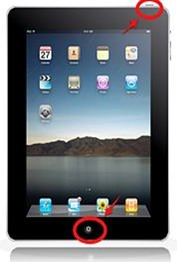
3. You will see an on-screen flash.
4. If you have sound enabled, you will hear a camera click.
5. You can then email this image to a laptop/computer.
6. Go to the ‘Photos’ option at the bottom of the screen. (This is where your screenshot picture will be).
7. Select the image you wish to send.
8. Go to the toolbar at the top of the screen and click on the ‘Photo’ icon.
9. Click on the ‘Email Photo’ option from the drop-down menu, as shown in the illustration below.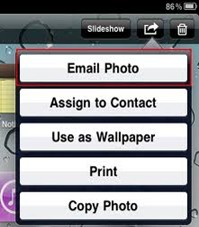
10. Type in the email address you want to send the picture to and click ‘Send’.
iPad - How to find your iOS Version
Sometimes, as part of our investigation into Support queries we may ask you to provide the version of iOS you are using on your iPad.
To do this:
1. Click the "Settings" app on the iPad
2. Click "General"
3. Then "About"
4. The version is displayed part-way down the screen
If you could take a screenshot of this screen and send it with your response it would also be useful.
Guidance on taking screenshots using the iPad can also be found in the Help Console.
Was this article helpful?
That’s Great!
Thank you for your feedback
Sorry! We couldn't be helpful
Thank you for your feedback
Feedback sent
We appreciate your effort and will try to fix the article