This feature will enable assessment staff to host or join online meetings. Candidates, workplace managers and expert witnesses can also join meetings.
And all, simply, through your web browser with no software download required, and includes:
- Host a meeting and invite one or many participants
- One-to-one & one-to-many & many-to-many video conferencing
- Screen-share
- Record meeting video & screen-share (these can then easily be added as evidence, or to a contact log in a portfolio)
 How to activate this feature: How to activate this feature:An administrator at your centre will need to: 1 - Subscribe to an Online Meeting Package. Please email support@ecordia.co.uk for available options. 2 - Tick 'User can Host Online Meetings' by modifying the users' account. 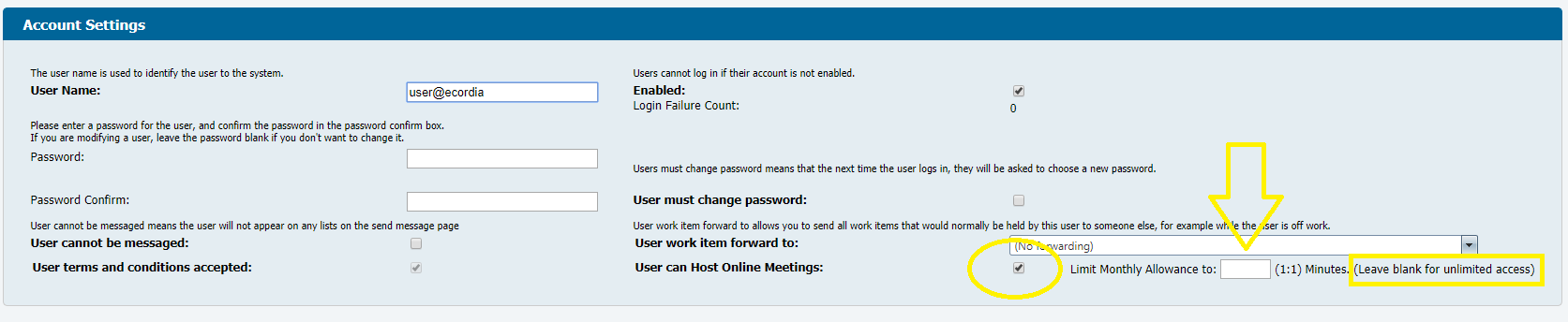 3 - Use one of the recommended browsers below, or the feature should work with most native browsers on a mobile device, such as an Android device or iPhone/iPad. 3 - Use one of the recommended browsers below, or the feature should work with most native browsers on a mobile device, such as an Android device or iPhone/iPad. |
How to use Online Meetings:
1. Host a New Meeting Now:
1.1 Go to Connect/Online Meeting (this will open a new tab)
1.2 Click 'Host a new meeting Now'
1.3 A dialogue box will appear, complete the fields and click 'Save'
1.4 Provide your participant(s) with the meeting ID. Alternatively (optional): Add Participants to the meeting, by typing and selecting their name in the field provided. An invitation email will be automatically sent when you select a user (the number of participants you can invite or have join is dependant on your subscription package)
1.5 Click 'Done', and the meeting will commence.
2. Schedule a Meeting:
2.1 Go to Connect/Online Meeting (this will open a new tab)
2.2 Click 'Schedule a new meeting'
2.3 A dialogue box will appear, complete the fields and click 'Save'
2.4 Optional: Add Participants to meeting, by typing and selecting their name in the field provided. An invitation email will be automatically sent when you select a user (the number of participants you can invite or have join is dependant on your subscription package)
2.5 Click 'Done', the meeting will now appear in Your Scheduled Meetings. To commence the meeting, click 'Start'. You can delete a scheduled meeting, but you cannot delete a meeting once it has commenced.
3. Hosting a Meeting:
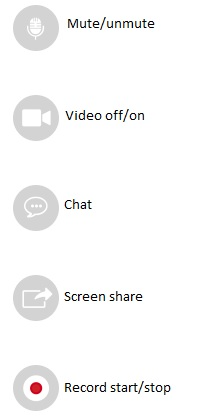
The following controls are available to users when hosting a meeting. Note; only the host can screen share and/or record meetings.
4. System Requirements:
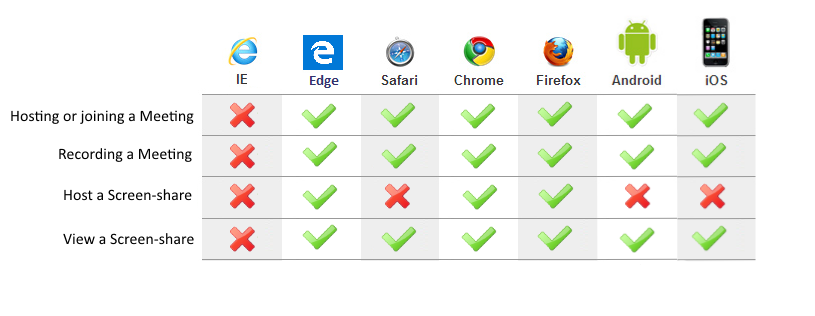
The following table shows the browser compatibility for online meetings.
Below the table are links to where you can download the browser.
For the best user experience we recommend Mozilla Firefox.
Microsoft Edge - https://www.microsoft.com/en-gb/windows/microsoft-edge
Mozilla Firefox - is a popular additional browser available to computer users. Firefox 3 or above is required. http://www.mozilla.org/products/firefoxVersion 3 or above.
(Must be used for Apple-Mac users)
Google Chrome - is a popular additional browser available to computer users . https://www.google.com/intl/en_uk/chrome/browser/
Safari for iOS - A minimum of version 5.1 is required, but we would recommend version 6, for use on Apple devices ie. iPhone, iPad, iPod etc.
Having problems with Online Meetings working properly?
Please check the following or speak to your IT department to ensure the following is configured correctly:
Online Meeting network connectivity requirements:
At a minimum the following requirements must be met:
- Open TCP port 443
- Whitelist the following domains:
*.tokbox.com
*.opentok.com
You can test if a network meets the connectivity requirements using the following tool:
https://tokbox.com/developer/tools/precall/
Was this article helpful?
That’s Great!
Thank you for your feedback
Sorry! We couldn't be helpful
Thank you for your feedback
Feedback sent
We appreciate your effort and will try to fix the article