The 'Contact Log' button is located on the Portfolio Front Page. This button enables you to view all the Contact Logs that have been entered into the Portfolio. Contact Logs can be created by the Candidate, Assessors or other Users within the Training Centre. Contact Log entries feed into a Contact Log report, which is accessible to centre administrators, Assessors and IQAs and provides an audit log which can be exported to PDF, Excel or CSV file.
PLEASE NOTE: The purpose of the Contact Log facility is not for UPLOAD & SUBMIT EVIDENCE but for simply recording contact.
1. Creating a Contact Log Entry
1.1 Click 'Training & Contact logs'; then ‘Add Log Entry’ button.
1.2 Select the type of contact to be recorded from the available Log Types
1.3 (Optional) Use the description field to provide details of the contact
1.4 (Optional) To set a reminder for the next contact. Select the date and time of next contact, then who the reminder is for and the selected users will receive an Ecordia Message notifying them of the scheduled reminder, and will then receive an Ecordia Message on the day of the reminder.
1.5 (Optional) To request signatures from one or more users, select the users from the Signature From list. Each selected user will be notified by Ecordia Message when the Contact Log has been saved. The message will contain a link to the Contact Log page, where the user will be able to click 'sign' against the contact log, and leave a comment, and candidates will be able to answer any questions you have set-up for the contact log type too.
1.6 Enter Time Taken (hh:mm) if you need to track hours for Off Job Training etc (to reduce hours, enter minus figures (or modify an existing contact log) E.g. candidate has 3hr 45 mins, to reduce by 45 mins enter -45 in the mm box and ‘save’) 1.7 Click 'Save'
2. Adding attachments to Contact Logs
2.1 Create and save a contact log (steps 1-6 above)
2.2 Click the paperclip icon, then click ‘choose files’ to select a file form your folders, or 'Browser Recordings' to select from you online meeting recordings
2.3 Click 'Add' to upload your chosen files, and the X against a file can be used to delete it.
2.4 Click 'Close' when finished.
PLEASE NOTE: Files can be attached to any contact log you have ‘modify’ access to (usually only the case if you created the log, but QACs have modify access to all logs).
3. Contact Log Progress/Monitoring:
If you have a service level agreement with your candidate, your training Centre might choose to show progress on certain types of activities, such as for 20% off job training, or on-site visits here (see image below).
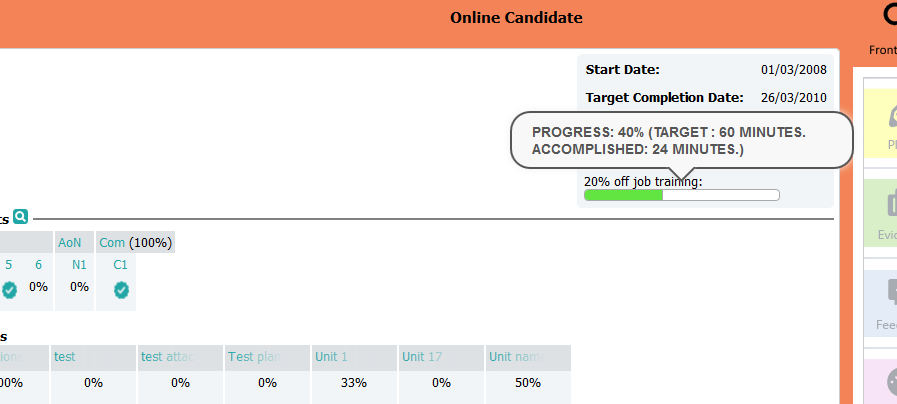
The number of target hours are set when creating the contact log type, but can be overridden for an individual portfolio as follows:
 How to activate this feature: How to activate this feature:An administrator at your centre should refer to the following guide Contact Log Types (Add/Edit) |
3.1 Click on the settings icon  located next to the progress bar for the tracked item on the Portfolio Front Page3.2 Enter the Target for this Portfolio in minutes, and 'Save'. The progress bar will then be updated to reflect the new target.
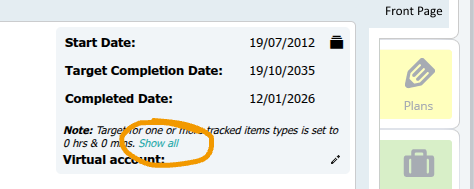
If you remove the hours and minutes at the Course level, the progress bar will not appear on the portfolio front page, but can be made live by then setting the hour and minutes in each portfolio as required.
To do this, set the default values to zero on the modify course page, then go to the portfolio and click on the show all next to the 'target for one or more tracked items types is set to 0 hrs & 0 mins' text:
4. To view the Contact Log Report:
4.1 Click on the "More"/"Reports" tab, then "Choose"
4.2 Select the Report Name of "Candidate Contact Log"
4.3 Set the filters according to your requirements
4.4 Click 'Generate Report'
4.5 Your results will be generate which can be viewed, or exported using the relevant buttons at the top of the screen
In addition to the report mentioned in this video, you can also use the following reports for contact logs via the Reports menu:
Candidate Contact Due - This report will show you who has a contact of the chosen type(s) and when the next contact is planned.
Candidate No Contact Report - This report can be used to view those who have not had any contact of select contact types.
5. Selecting specific contact logs for a course (this is optional, because all available contact log types will be available automatically):
5.1 Go to More/My Centre/Lookups, and select CandidateContactLogType.
5.2 Click 'Link Contact Log Types to Course'
Was this article helpful?
That’s Great!
Thank you for your feedback
Sorry! We couldn't be helpful
Thank you for your feedback
Feedback sent
We appreciate your effort and will try to fix the article