Expected Progress setting:
To help your candidates know their expected progress, activate the 'Show expected progress bar on portfolio' option within your centre settings.
The expected progress bar will appear on the portfolio front page, and is based on your Colour code settings on you Centre Settings page as show below. Your colour code settings can be changed as desired, and to save your changes click 'Update' at the bottom of the page.
To activate the Expected Progress feature:
1.1 Go to My Centre / Manage
1.2 Select 'Centre Settings' in the Manage drop-down list
1.3 Tick the box next to the 'Show expected progress bar on portfolio' option
1.4 Click 'Update'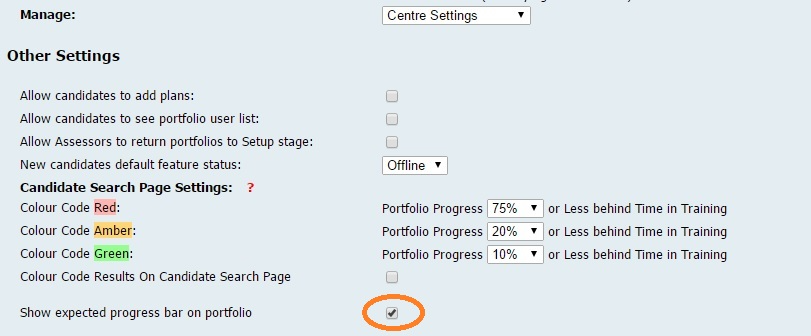
Once the Expected Progress bar feature has been activated, the bar will appear on all portfolios for your centre below the Overall Progress. The colour of the bar will change (green, amber, red) depending on the difference between overall progress and expected progress, and based on your Colour code settings. Users can place their cursor over the expected progress bar to see the exact value as a percentage. Expected progress will adjust accordingly for any breaks in learning that are more than 42 days.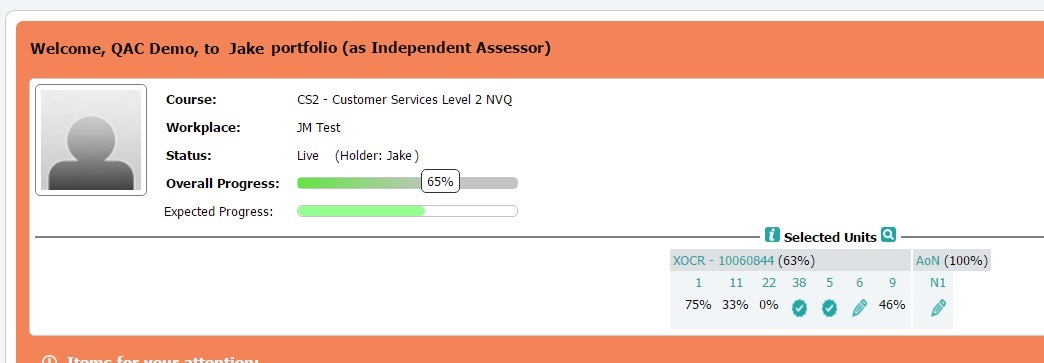
Candidate Registration Settings (Parnassus Daily Imports):
1.1 Go to My Centre / Manage
1.2 Select 'Centre Settings' in the Manage drop-down list
1.3 Click ‘Candidate Registration Settings’
1.4 You can then update the ‘Default Password’ and ‘Send Imports Reports To’ fields as required, and click ‘Save’. If you would like more than one recipient then separate email addresses with ; e.g. example1@example.co.uk; example2@example.co.uk
Colour Code Results on Candidate Search Page
Any User with access to the Candidate Search page can use the Colour Code Results option on the Candidate Search to highlight which of the candidates are on target (Green), trailing slightly behind target (Amber) or behind target (Red). This is often referred to as a RAG Rating.
Users with the Quality Assurer or Learning Support Administrator role can set the Centres’ Progress Settings/RAG Rating as follows:
1. Go to the "My Centre" tab, then "Manage"
2. Select ‘Centre Settings’ from the drop-down list of manage options
3. Set your Centre expectations using the drop-down menu against each colour code under the Progress Settings section of the screen.
4. Click 'Update'
You can also find further details on the feature on this page by clicking on the ‘?’.
When on the Candidate Search screen, the colour coding can be displayed/hidden by ticking/un-ticking the option "Colour Code Results ? " located to the right of the 'Reset' button.
Plagiarism Checking Service
It is possible to run plagiarism checks and AI Detection on evidence data and attachments (i.e. .doc, .docx and .txt files) through Ecordia using  (this is dependant on your Turnitin licence). Click here to see how to run a plagiarism check.
Customers with an existing Turnitin licence can integrate their existing licence with the Ecordia platform, and Customers who do not have a Turnitin licence will need to go to https://www.turnitin.com/products/similarity at Turnitin, and Turnitin will sell a licence directly to the you, which in turn can be integrated with Ecordia. To integrate with Turnitin through Ecordia, please email support@ecordia.co.uk for more details.
Once you have a Turnitin licence, and have subscribed to the integration, you will need to:
1. Go to More/My Centre/Manage
2. From the Manage drop-down menu, select 'Settings'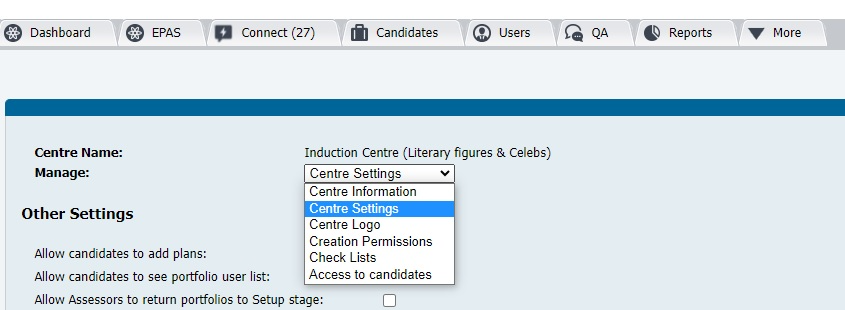 3. Enter your Tenant Name and API KEY, both will be provided by Turnitin
 4. Click 'Test Connection', and a green tick should appear (if not, double check you have entered the Tenant Name and API KEY correctly and try again)
5. Tick or untick the additional settings which will then be displayed. Further details about each setting can be found by clicking the question mark (?) next to each option.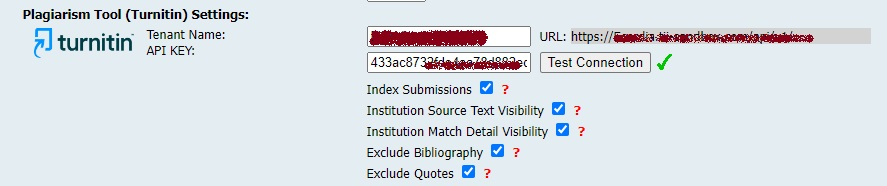 6. Click 'Update', your users can now begin running plagiarism checks if the plagiarism checking options are activated on the modify course page.
Was this article helpful?
That’s Great!
Thank you for your feedback
Sorry! We couldn't be helpful
Thank you for your feedback
Feedback sent
We appreciate your effort and will try to fix the article