Text Editor - Beginners Guide:
The integrated word / text processing and editing tool allows users to type directly into the Ecordia system for written evidence, messaging, assessments and plans. It works in much the same way as a normal word processing software package, such as Microsoft Word.
Key features include:
● Text Formatting: Bold, Italics, Font size, Font Type, Underline, Font colours
● Create tables
● Spell Checker
● Text Align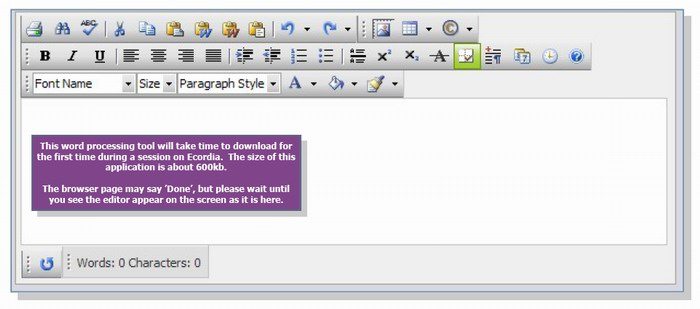 Writing-up work offline
You can write-up work offline, then simply copy and paste the text, including formatting, into the Text Editor. (Highlight the text then press CTRL-C to copy, select where you want to paste then CTRL-V)
If you want to work offline or on a computer without Internet access, you can use most standard word processing software, such as Microsoft Works, Microsoft Word, Windows Notepad or Word Perfect. ‘Open Office’ is free and can be downloaded here: http://www.openoffice.org/
Use these software applications on your local computer to write up work offline from the Internet. Then, when you next login to Ecordia, simply Copy & Paste the text into Ecordia’s text editor.
Copying Formatted Text from Microsoft Word and other applications.
Copying formatted text from Microsoft Word, Internet Explorer and other applications is straightforward.
Once you have pasted formatted text in the editor you can remove the Word-specific formatting which is not suitable for the web. To do that, first you need to select the text and then select the "Word Formatting" from the Code Stripper dropdown menu.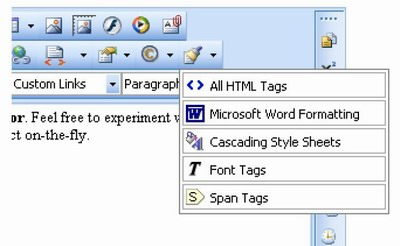
Was this article helpful?
That’s Great!
Thank you for your feedback
Sorry! We couldn't be helpful
Thank you for your feedback
Feedback sent
We appreciate your effort and will try to fix the article