1. Change the Primary Assessor: (QAC, LSA and IQA role holders only)
1.1 Go to the Candidates tab and search for the desired Candidate
1.2 Click 'View Candidate', then 'Modify'
1.3 Within the "Training Arrangements" section of the screen change the name of the Primary Assessor as required, then click 'Save'.
1.4 On saving, the following pop-up will be displayed.
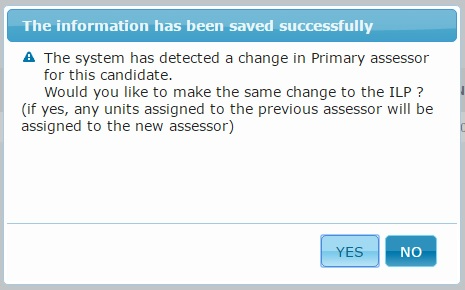
Click 'Yes' to make the same change to the ILP, or 'No' if this change is only to be applied to the Primary Assessor role.
Note; Changing a primary assessor will not necessarily remove access to a portfolio for the previous assessor, because the previous assessor will still have a relationship to the candidate if they have assessed or planned evidence.
If you want to stop a user from having access, and changing the Primary Assessor is not sufficient, we recommend using the Access to Candidates control.
2. Change a Unit Assessor
2.1 Go to the Candidates Portfolio, and click the 'Individual Learning Plan' button, then 'Modify ILP'
2.2 Change the name of the Assessor next to each of the selected Units as required.
2.3 Click 'Save'.
3.1 From the Candidate Search Result screen select 'View Candidate' against the relevant candidate
3.2 Scroll to the bottom of the screen and click 'Additional Assessors'
3.3 Start to type the Additional Assessor's name in the field for "Assessor Name" and you will see the results appear below
3.4 Select the correct assessor's name
3.5 Click 'Add'
3.6 Click 'Back'
4. Remove an Additional Assessor
4.1 From the Candidate Search Result screen select 'View Candidate' against the relevant candidate
4.2 Scroll to the bottom of the screen and click 'Additional Assessors'
4.3 Click 'Remove' against any unwanted assessor in the list
4.4 Click 'Back'
5. Change a Primary IQA
5.1 Go to the Candidates tab and search for the desired Candidate
5.2 Click 'View Candidate', then 'Modify'
5.3 Within the "Training Arrangements" section of the screen change the name of the Primary IQA as required, then click 'Save'.
5.4 On saving, a pop-up will be displayed to ask if the same change needs to be made to the ILP. Click 'Yes' to make the same change to the ILP, or 'No' if this change is only to be applied to the Primary IQA role.
6. Change an Additional IQA
5.1 Go to the Candidates tab and search for the desired Candidate
5.2 Click 'View Candidate', then 'Modify'
5.3 Within the "Training Arrangements" section of the screen tick and untick against the list of IQAs as required, then click 'Save'.
Keywords: change assessor, change iv, change internal verifier, training arrangements, change primary assessor, change primary IV
Was this article helpful?
That’s Great!
Thank you for your feedback
Sorry! We couldn't be helpful
Thank you for your feedback
Feedback sent
We appreciate your effort and will try to fix the article