For candidates, assessors and other centre staff.
Contact logs record contact with a candidate, such as reviews, visits, calls and off-the-job training. Candidates, assessors and other centre staff can all add them.
To see all the contact logs for a portfolio, click Training & Contact Logs on the Portfolio Front Page. Contact logs also feed into the Contact Log report, which centre administrators, assessors and IQAs can use as an audit log.
Note: Contact logs are for recording contact, not for submitting evidence. To submit evidence, see Upload & Submit Evidence.
- Adding a contact log
- Adding attachments
- Tracking progress against targets
- Contact log reports
- Choosing contact log types for a course
Adding a contact log
- On the Portfolio Front Page, click Training & Contact Logs, then Add Log Entry.
- Choose the type of contact from the list of log types. Your centre sets these up in Lookups.
- Optional: add details of the contact in the description box.
- Optional: to set a reminder for the next contact, choose the date and time, then who the reminder is for. They'll get an Ecordia Message now, and another on the day.
- Optional: to ask for signatures, choose one or more users from the Signature From list. When you save, they'll get an Ecordia Message with a link to the contact log, where they can click Sign and add a comment. Candidates can also answer any questions set up for that log type.
- Optional: if you're tracking hours, such as for off-the-job training, enter the Time Taken (hh:mm).
- Click Save.
Reducing hours: enter a minus figure, or change an existing log. For example, if a candidate has 3 hours 45 minutes and you need to take off 45 minutes, enter -45 in the minutes box and click Save.
For off-the-job training, see also Record OTJ Logs.
Adding attachments
- Create and save a contact log, as above.
- Click the paperclip icon.
- Click Choose Files to pick a file from your computer, or Browser Recordings to pick one of your online meeting recordings.
- Click Add to upload the files. To remove a file, click the X next to it.
- Click Close.
Note: You can add files to any contact log you can modify. Usually that's only the logs you created, but QACs can modify all logs.
Tracking progress against targets
If you have a service level agreement with the candidate, your centre can show progress bars on the Portfolio Front Page for certain activities, such as 20% off-the-job training or on-site visits.
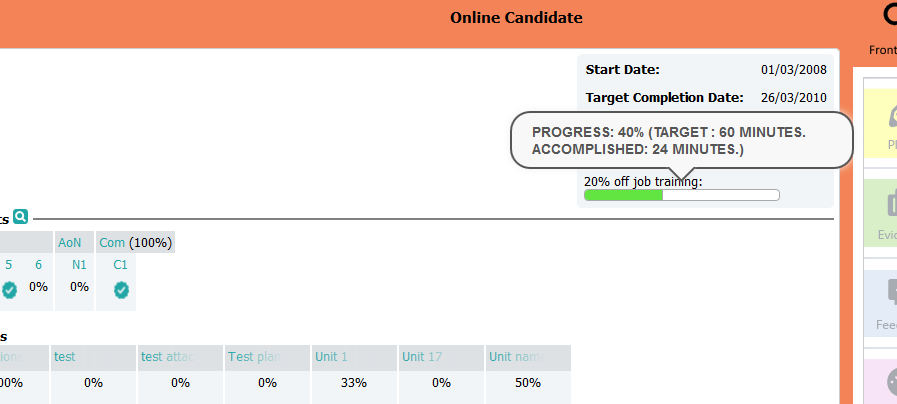
Setting this up: a centre administrator sets the target hours when creating the contact log type in Lookups.
Changing the target for one portfolio
- On the Portfolio Front Page, click the settings icon
 next to the progress bar.
 - Enter the Target for this Portfolio in minutes and click Save. The progress bar updates to the new target.
Only showing a target on some portfolios
If you set the course's default target to zero hours and minutes, the progress bar won't appear on the Portfolio Front Page. You can then switch it on for individual portfolios:
- On the modify course page, set the default target to zero.
- Go to the portfolio. Next to the message "target for one or more tracked items types is set to 0 hrs & 0 mins", click Show All.
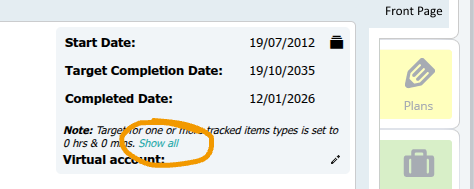
- Set the target for this portfolio and click Save.
Contact log reports
- Click the Reports tab (or More > Reports, depending on your roles), then Choose.
- Choose the Candidate Contact Log report.
- Set the filters you need.
- Click Generate Report.
You can view the results on screen, or export them to PDF, Excel or CSV using the buttons at the top.
Two other reports are useful for contact logs:
- Candidate Contact Due: shows who has a contact of the chosen type(s) coming up, and when.
- Candidate No Contact Report: shows who hasn't had any contact of the chosen type(s).
Choosing contact log types for a course
This is optional. By default, every contact log type is available on every course.
- Go to More > My Centre > Lookups and choose CandidateContactLogType.
- Click Link Contact Log Types to Course.
- Choose the course.
- Move the log types you want from the left-hand list to the right-hand list.
- Click Save, then Done.
Related articles
Was this article helpful?
That’s Great!
Thank you for your feedback
Sorry! We couldn't be helpful
Thank you for your feedback
Feedback sent
We appreciate your effort and will try to fix the article