Click this button to record and view Off The Job Training.
To record OTJ in a portfolio:
- Click 'OTJ Logs' button on the portfolio front page
- Complete the fields, and enter the key learning. Tip: use #evidence[number] e.g. #evidence1, to link to evidence in the portfolio.
- Click 'Save'
- The record will then be added to the table at the bottom of the screen, and attachments can be added and viewed by clicking on the paperclip icon on the right.
Depending on the course settings (see Auto Approve Candidate OTJ logs), a centre-based user might need to approve OTJ Logs created by the candidate by ticking the box provided.
OTJ Logs dated after the Actual Gateway Date has been passed, will not be ticked as approved automatically. A centre-based user will need to tick to approve these.
Click here to see how to create a record for more than one portfolio at a time (this is useful for recording group sessions/training).
An existing log can be deleted or edited using the controls on the right of the record. If the record was created via the 'Candidates/Record OTJ Logs ' (where a record can be attached to more than one candidate at a time) it can only be edited via the Record OTJ Logs screen.
Setting OTJ Target:
Go to the Portfolio Front page and click on the settings icon next to the Off Job Training progress bar (you will need to have made at least one OTJ record first). 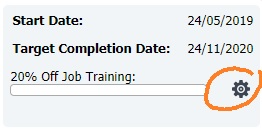
You can then set the required hours and minutes for the candidate if this different from your default setting from the course. If set to zero '0', the progress bar will be hidden from view.
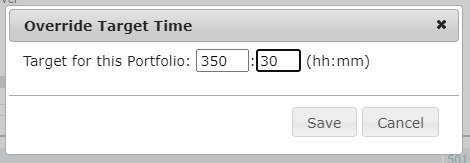
The expected progress for OTJ is calculated using the time between the portfolio Target Start Date and the Expected Gateway Date, and is adjusted accordingly if there is one or more breaks in learning of more than 42 days.
If an Expected Gateway Date is not provided, then the system will default to using the Target Completion Date of the portfolio.
Was this article helpful?
That’s Great!
Thank you for your feedback
Sorry! We couldn't be helpful
Thank you for your feedback
Feedback sent
We appreciate your effort and will try to fix the article