The green "Evidence" tab can be located within the online Portfolio on the right-hand side of the screen, displaying vertically. This tab takes you to a table containing all the evidence for your Portfolio.
You can access any of the items of Evidence by clicking on the item you want to view.
Please refer to the table below. Each item of Evidence has an "Evidence Status", and the "Links To" column shows which knowledge elements and performance criteria that particular piece of Evidence links to.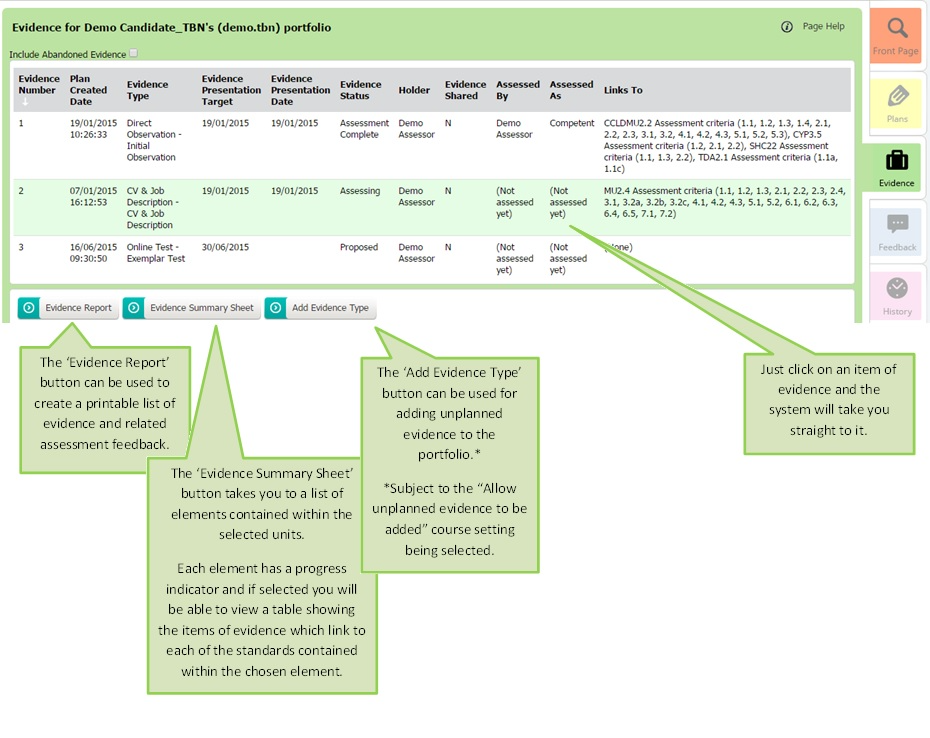 Regardless of an item's status, when viewing an item of Evidence the following buttons will be available:
'Go To Plan' This button will take you directly to the Plan which the item of Evidence is linked to.
'Show Plan' This will enable you to view the Plan that the item of Evidence is linked to without leaving the current page.
'Show Standards' This will enable you to view the Standards for your Course.
Colour codes on the evidence table:
Specifically designed for BTEC courses, this indicates items that are over-due or late.
Red - Presented past target date but not yet assessed
Amber - Target date has passed
Green - Presented past target date but assessment complete
This can be switched on and off on the modify course page by an administrator.
See also
Was this article helpful?
That’s Great!
Thank you for your feedback
Sorry! We couldn't be helpful
Thank you for your feedback
Feedback sent
We appreciate your effort and will try to fix the article