1. Learning aim parts:
The display name for the following learning aim parts can be changed to match the terminology used by different awarding organisations:
Unit Level Knowledge
Unit Level Range
Element Performance Criteria / Range
Element Knowledge
The display name for these learning parts are displayed when viewing the following pages:
Evidence Summary Pages
Gap Reports
Link Evidence
Show Standards
To change a display name:
1.1Go to Course Admin/Learning aims, and select the learning aim
1.2Click 'Modify'
1.3Enter your required display name next to the relevant learning part
1.4Click 'Save'
Note: If there are no units added to a learning aim, the learning aim will not appear on the Skills Scan or Individual Learning Plan even if the aim is linked to the course. You can either add and activate units, or request the units are added by contacting support@ecordia.co.uk
2. Skipping Unit Completion Declarations
When a unit reaches 100% complete the unit completion declaration workflow commences. If you do not require unit completion declarations for a learning aim, they can be skipped (which will move them to complete on reaching 100%) as follows:
2.1Go to Course Admin/Learning aims, and select the learning aim
2.2Click 'Modify'
2.3Tick the 'Skip Unit Completion Declaration' option
2.4Click 'Save'
3. Suggested Links
The suggested links feature allows you to make links between a criterion in a unit and other criteria in the same unit or other units in your available learning aims. When a user then links evidence , the suggested links will be included linked automatically based on the active units in the portfolio.
To create suggested links:
3.1Go to Course Admin/Learning aims, and select the learning aim containing the criteria you want to link from
3.2Click 'Suggested Links'
3.3Click 'Add Link'
3.4On the left select the unit then criterion you want to link from
3.5On the right, select the learning aim, then unit and criteria you want to link to (the criteria you select at this step will be the criteria the system adds to the coverage when the criterion in step 4.4 is selected when a user is linking evidence.
3.6Click 'Save'
You will now be viewing a list of Suggested Links which have been created. You can add to links by clicking 'Modify', or click 'Delete' if you want to remove suggested links.
4. To claim a completed Learning Aim:
4.1 Go to the Portfolio Front Page and click on the 'Aim Code' link in the Unit Selections section of the screen
4.2 Click ‘End Learning’
4.3 Enter the end information for the Learning Aim
4.4 Click ‘End’.
5. To claim a completed Course (all Aims complete):
5.1 Go to Portfolio Front Page
5.2 Click 'Individual Learning Plan' then 'Manage Learning Status'
5.3 Enter the end information. All incomplete Aims will now be ended using this end data and reason.
5.4'Change status'
6. Setting/Changing Rules for Mandatory Units and Optional Units:
6.1Go to the aim via Course Admin/Learning aims
6.2Click ‘Manage Units’
6.3Click ‘Edit’ against the unit group with the unit restriction you want to manage (Units Groups are located in the table above the list of units)
6.4Set restrictions as required, and click ‘Update’
7. Evidence Types:
When using the 'Add Evidence' control in a portfolio, the available evidence types are dependent on the evidence types which have been selected for the learning aims that are linked to the course. Here is how to add an evidence type to the list:
Adding/Removing an Evidence Type in the available list:
7.1 Go to More/Course Admin/Learning aims, and select the learning aim
7.2 Click 'Evidence Types'
7.3 Tick and/or un-tick next to the evidence types you would like available for the learning aim (tip: use Ctrl+F on your keyboard to search the list)
7.4 Click 'Save'
8. Display for Unit Parts
This feature allows you to control the display position of the units when linking evidence or using Show Standards.
To change the display for unit parts:
8.1 Go to Course Admin/Learning aims, and select the learning aim
8.2 Click 'Modify'
8.3 Select the Display Position for the learning aim part (1 being displayed first - 4 being last, and by selecting 'don't display' the unit part will not be shown)
8.4 Click 'Save'
9. Add Learning Aim
These instructions explain how to add a new aim to your account. Alternatively, for a fee, we can upload new aims for you. Simply email support@ecordia.co.uk with a copy of the standards/qualification you require and in a format we can copy from, such as Word or unlocked PDF, and we can usually have them available within 3-5 working days.
9.1 Go to Course Admin/Learning Aims
9.2 Click 'Add Aim'
9.3 Complete the fields being sure to enter an Award End and Claim End Date, and click 'Save'
9.4 Click 'Manage Units'. You can now create your unit groups within the Unit Groups section of the screen i.e Mandatory Units, Optional Units. You must create at least one unit group.
9.5 Click 'Add Unit'
9.6 Complete the fields, and click 'Save'.
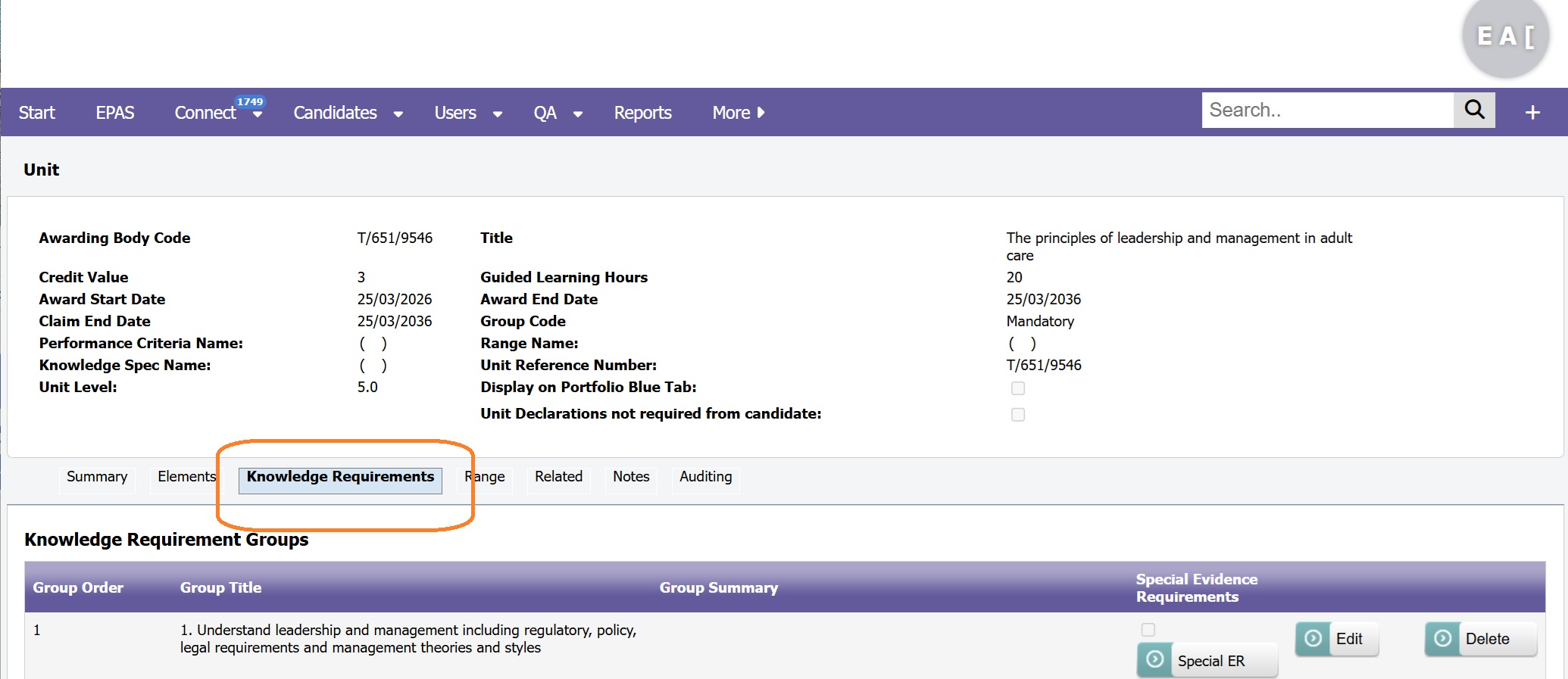
9.7 Click on the 'Knowledge Requirements' tab in the sub-menu
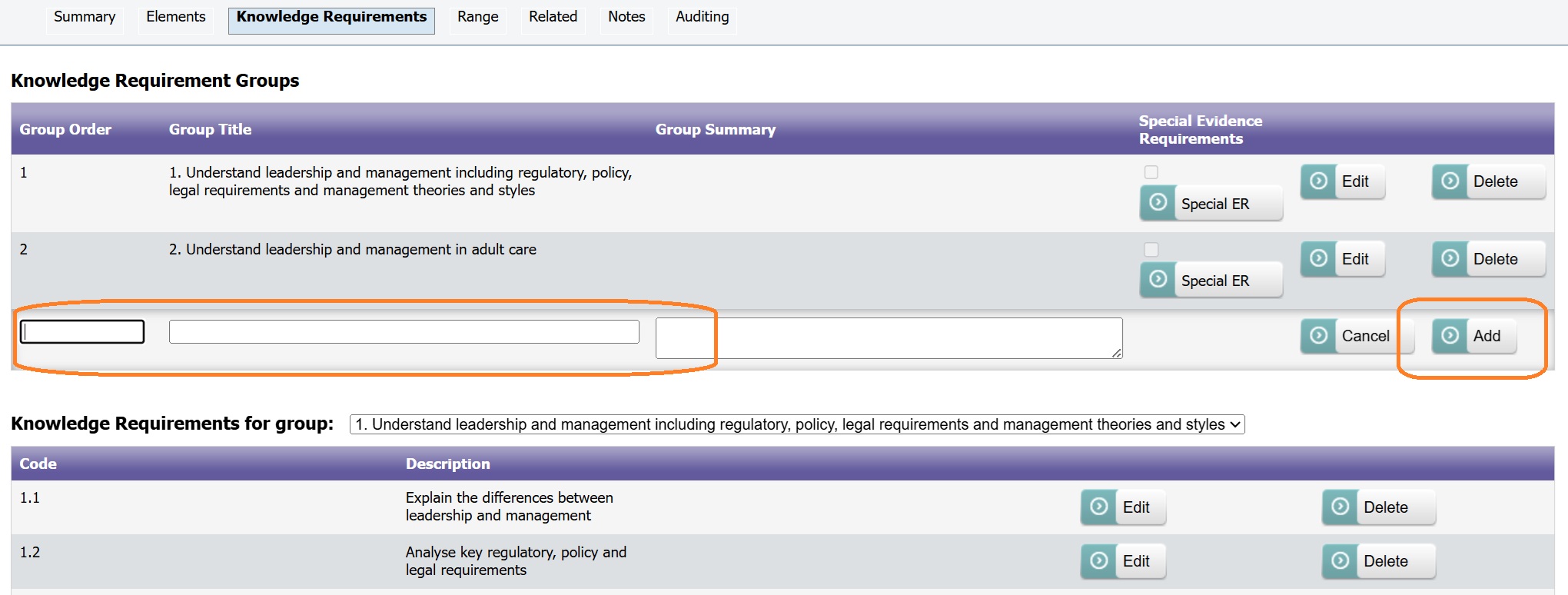
9.8 Create at least one Knowledge Group (this is usually the learning outcome title)
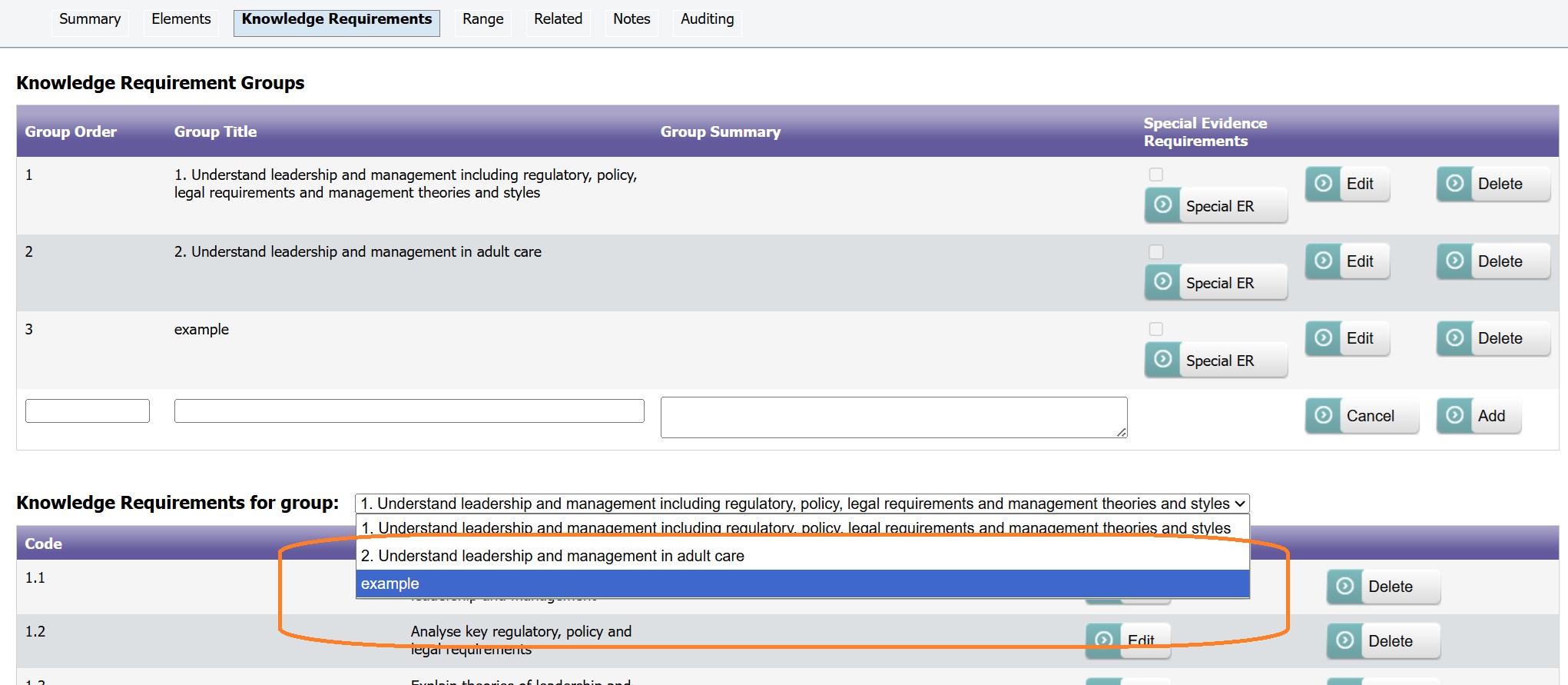
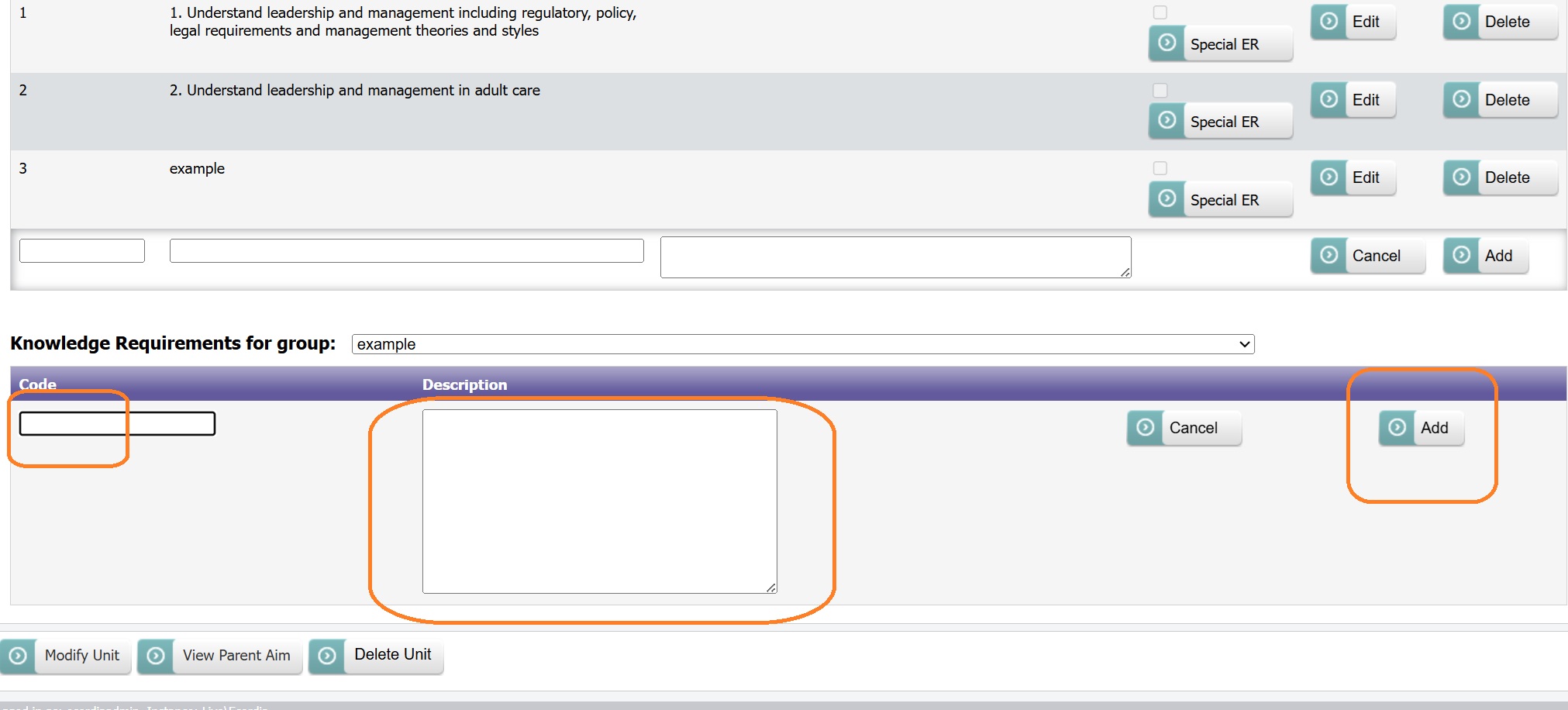
9.9 Add the assessment criteria to the Knowledge Requirements for group section of the screen
9.10 Click 'View Parent Aim', and repeat from step 9.5 above for each unit, if all units added go to next step
9.11 Click 'Activate Units', to select the units you want available to users, and click 'Save'
9.12 Click 'Apply Standard Set' to activate the standard evidence types (or click 'Evidence Types' to select which evidence types you would like to appear when users add evidence to the portfolio, click 'Save' at the bottom of the page)
9.13 Once the aim is complete, it will need to be linked to a course before it will appear when setting up a portfolio .
10. Edit Awarding Body Unit Codes
If a unit code is changed, the change will be applied throughout the system.
10.1 Go to Course Admin/Learning Aims and select the learning aim containing the unit(s) to be edited
10.2 Select the Unit
10.3 Click 'Modify'
10.4 Edit Awarding Body Unit Code field
10.5 Click 'Save'
10.6 Click 'View Parent Aim' to return to step 10.2
11. Add Unit
These instructions explain how to add a new unit to an existing learning aim. Alternatively, for a small fee, we can upload new units for you. Simply email support@ecordia.co.uk with a copy of the unit you require and in a format we can copy from, such as Word or unlocked PDF, and we can usually have them available within 3-5 working days.
11.1 Go to Course Admin/Learning Aims
11.2 Select the Learning aim you want to add a unit to
11.3 Click 'Manage units' then 'Add Unit' (see Add Unit Group below if this a new aim)
11.4 Complete the fields, and click 'Save'
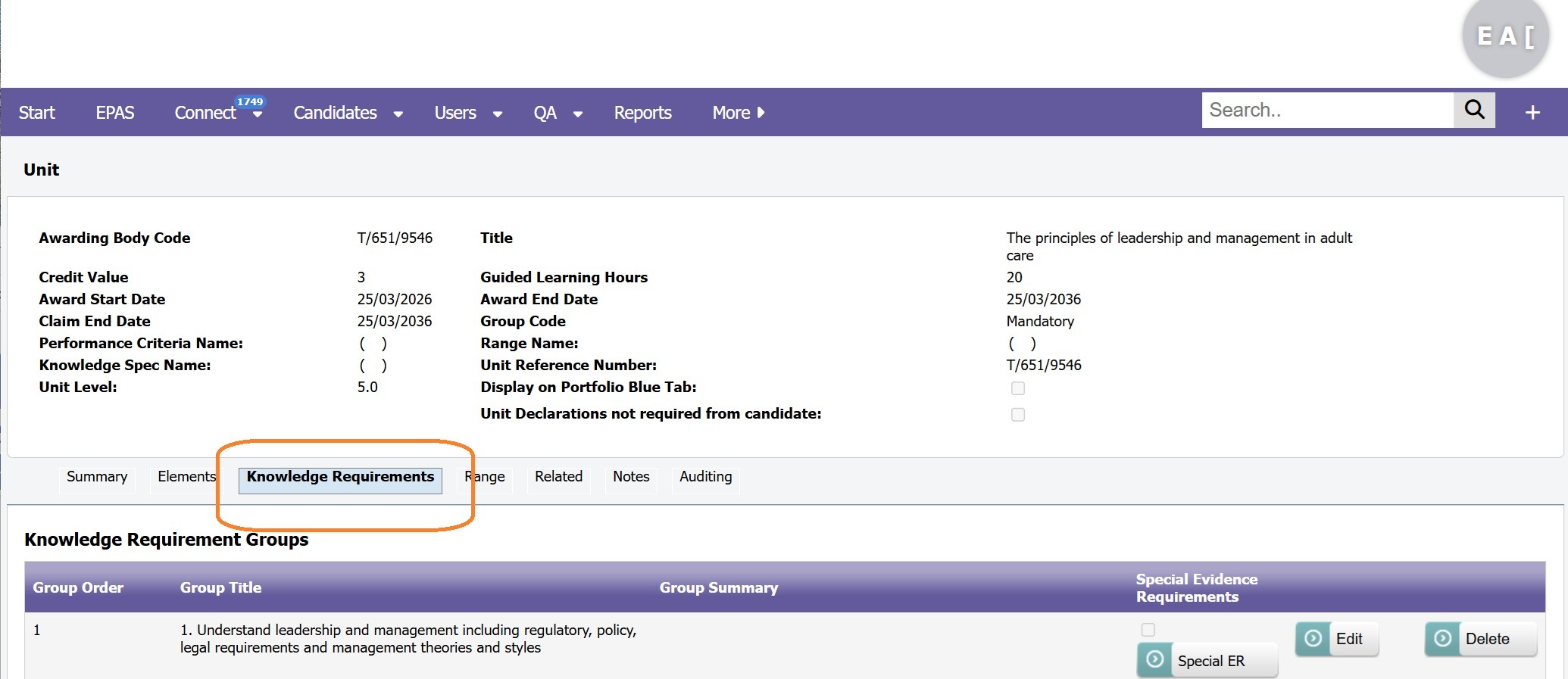
11.5 Click on the 'Knowledge Requirements' tab in the sub-menu
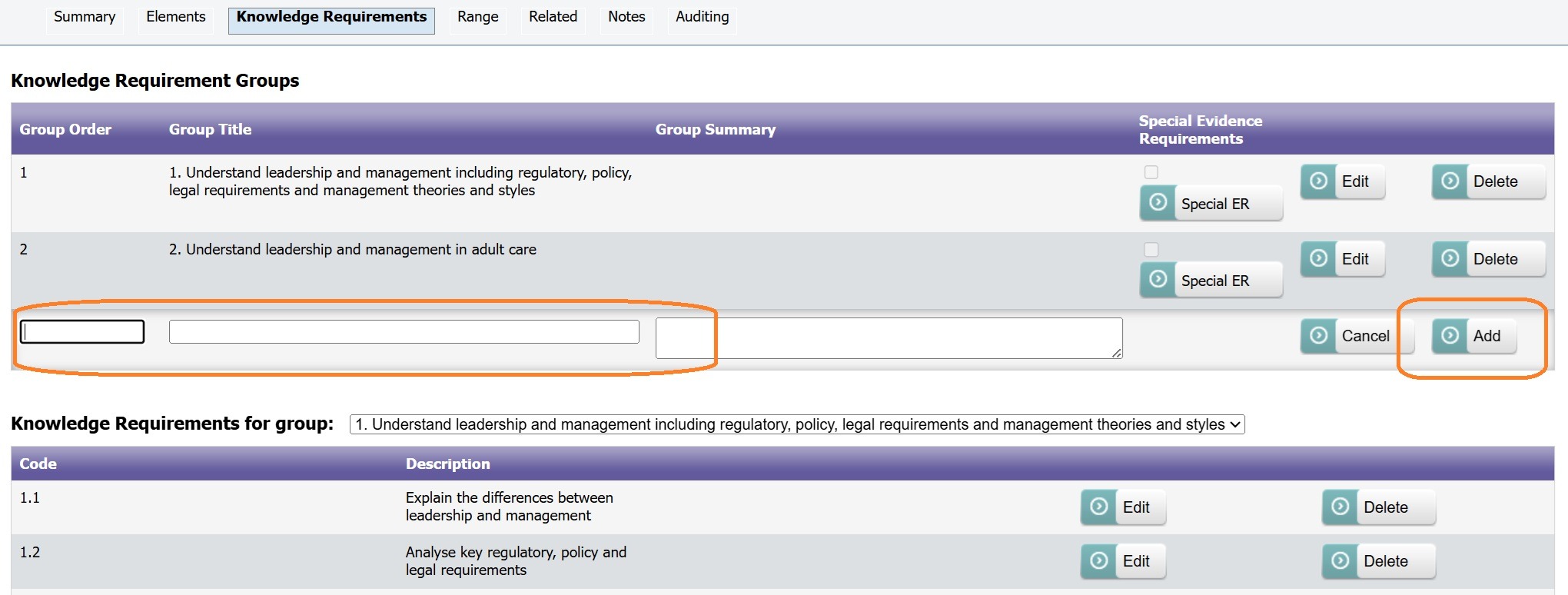
11.6 Create at least one Knowledge Group (this is usually the learning outcome title)
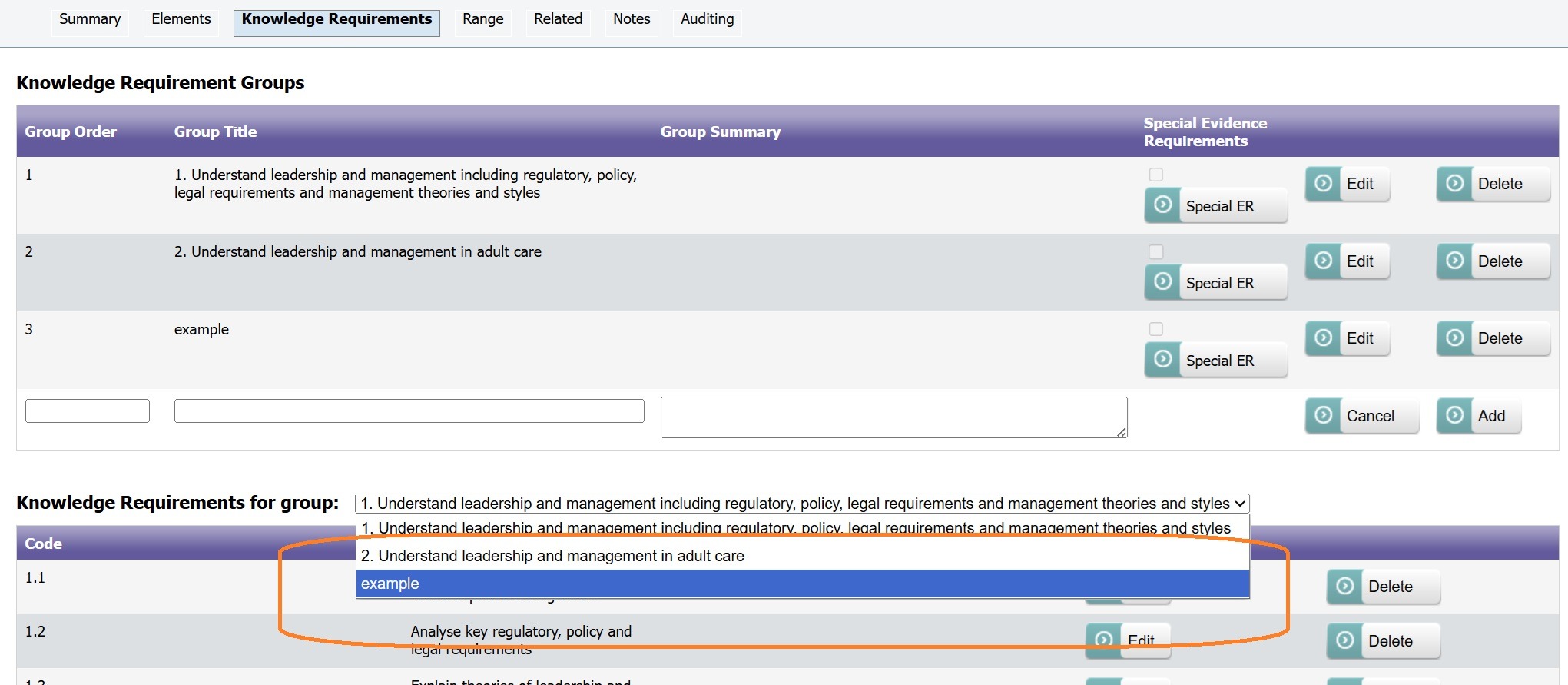
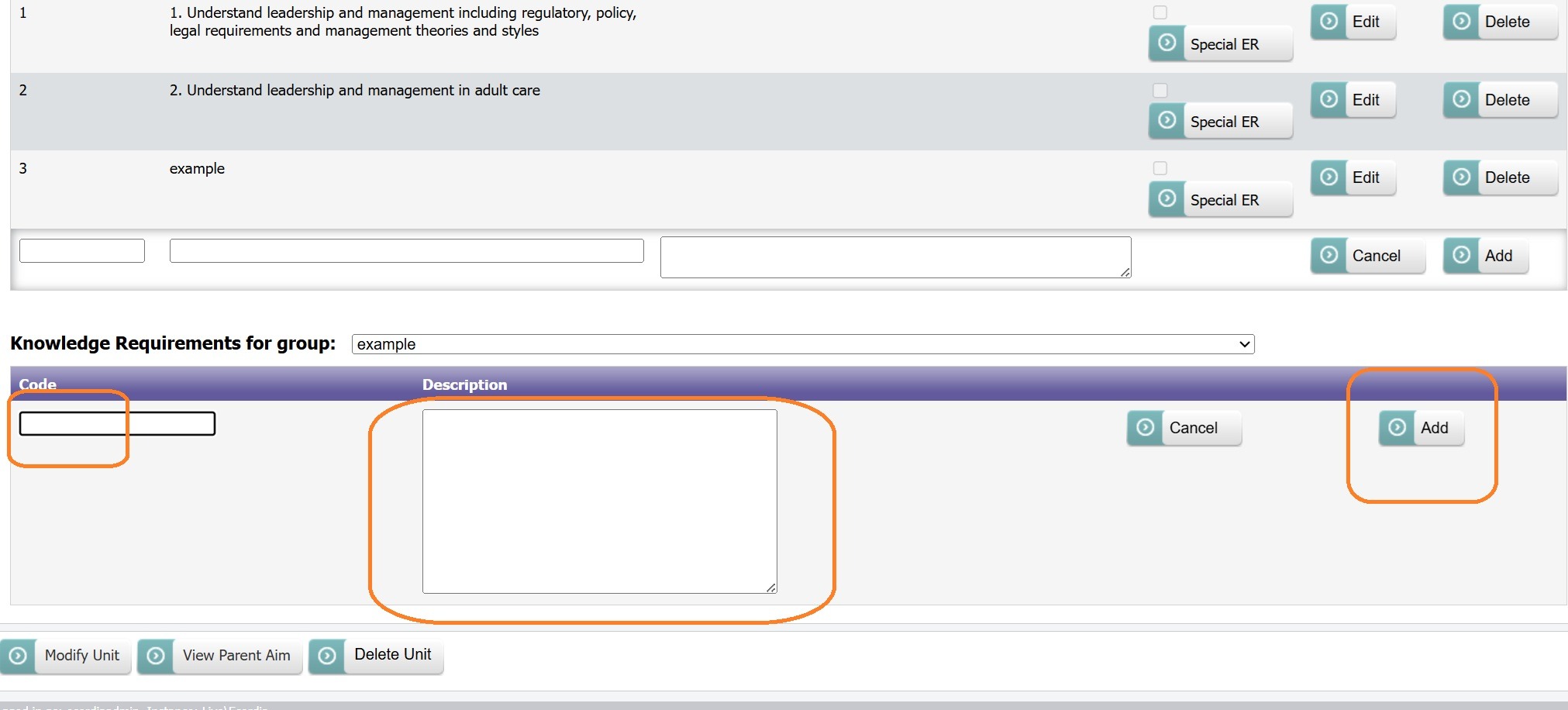
11.7 Add the assessment criteria to the Knowledge Requirements for group section of the screen
11.8 Click 'View Parent Aim', and repeat from step 11.3 above for each unit, if all units added go to next step
11.9 Click 'Activate Units', to select the units you want available to users, and click 'Save'
11.10 Once the aim is complete, it will need to be linked to a course before it will appear when setting up a portfolio .
Add Unit Group:
If you have created a new aim, you will need to create at least one unit group before you can add a unit:
- Select the aim
- Click 'Manage Units'
- Scroll up to the Unit Groupings section of the screen and add at least on group
- Once saved, you will be able to add units.
12. Adding Criteria to Knowledge Part (commonly used for Learning Outcomes and assessment criteria)
12.1 Go to Course Admin/Learning Aims
12.2 Select the Learning aim you want to add criteria to
12.3 Select the unit
12.4 Click on the 'Knowledge Requirements' tab in the sub-menu
12.5 Optional: Create a new Knowledge Group (this is usually the learning outcome title)
12.6 Add the assessment criteria to the Knowledge Requirements for group section of the screen
12.6 Repeat from step 12.5 to add more criteria, or click 'View Parent Aim' to select another unit and return to step 12.3.
13. Adding Notes to a Unit
13.1 Go to Course Admin/Learning Aims
13.2 Select the Learning aim you want to add criteria to
13.3 Select the unit
13.4 Click on the 'Notes' tab in the sub-menu
13.5 Enter a title for the notes
13.6 Enter the information you would like displayed
13.7 Click 'Add'
14. Switch off Unit Completion Declarations for candidates
To switch off unit declarations for candidates on a specific unit:
14.1 Go to the unit via Course Admin and click 'Modify'.
14.2 Tick the 'Unit Declarations not required from candidate' option
14.3 Click 'Save'.
When that unit is next confirmed complete by an assessor in a portfolio, it will go directly to the IQA and skip the candidate. The candidate declaration section of the page will also not be displayed.
15. Splitting dual/double-barrelled criteria:
15.1 Go to Course Admin/Learning Aims
15.2 Select the Learning aim you want to add criteria to
15.3 Select the unit
15.4 Click on the 'Knowledge Requirements' tab in the sub-menu
15.5 In the Knowledge Requirements for group section of the screen, select the knowledge group the criteria to be split
15.6 Enter the criteria by entering a code and the text
15.7 Click 'Add'
15.8 Click 'Edit' on the criteria you have split to add .1 to the code and remove duplicate text
15.8 Repeat from step 12.5 to add/edit more criteria, or click 'View Parent Aim' to select another unit and return to step 15.3.
Was this article helpful?
That’s Great!
Thank you for your feedback
Sorry! We couldn't be helpful
Thank you for your feedback
Feedback sent
We appreciate your effort and will try to fix the article