This tab is designed for the new Apprenticeship Standards and is used to:
Share evidence with the Independent Assessor/End Point Assessor
Enable you to record achievements towards the Assessment Gateway/PE Components
Giving access to an IA/EPA
The default name of this blue tab is 'Portfolio of Evidence', but this can be changed on a per course basis via the the 'Portfolio of Evidence Title' field on the course settings.
 How to activate this feature: How to activate this feature:An administrator at your centre will need to: 1 - Optional: Link your Apprenticeship Standard (APPST) learning aims to the relevant courses 2 - Optional: Create PE Assessment Group(s) 3 - 'Modify' the Course and: 3.1 - Tick the 'Supports Portfolio of Evidence' option |
1. To add evidence to the blue tab:
1.1 Go to the green Evidence tab
1.2 Tick the 'Add Evidence to [blue tab name]' option located at the top right of the evidence table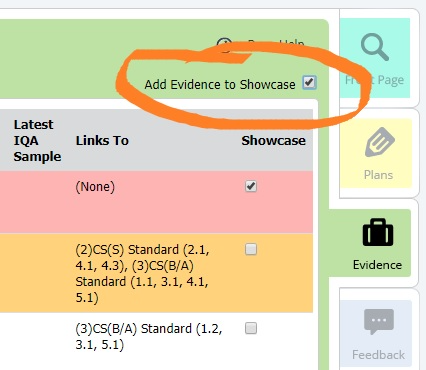
1.3 Tick the evidence you would like to make available in the blue tab (the IA will then be able to access these when they visit the blue portfolio tab).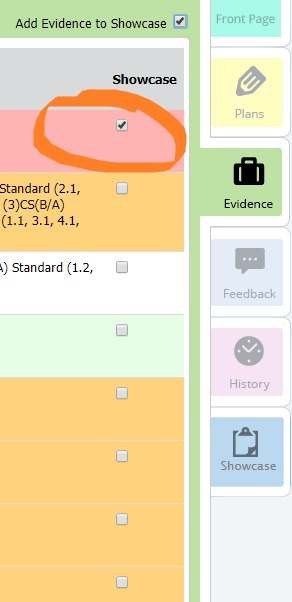 Note, an IA cannot access any other portfolio tabs.
2. To remove evidence from the blue tab:
2.1 Go to the green Evidence tab
2.2 Tick the 'Add Evidence to [blue tab name]' option located at the top right of the evidence table
2.3 Un-tick the evidence you would like to remove from the blue tab.
3. Updating a PE Component:
3.1 Go to the Blue Tab
3.2 Select the PE Component. 3.3 You will now be viewing the properties of the component, which you can update as required: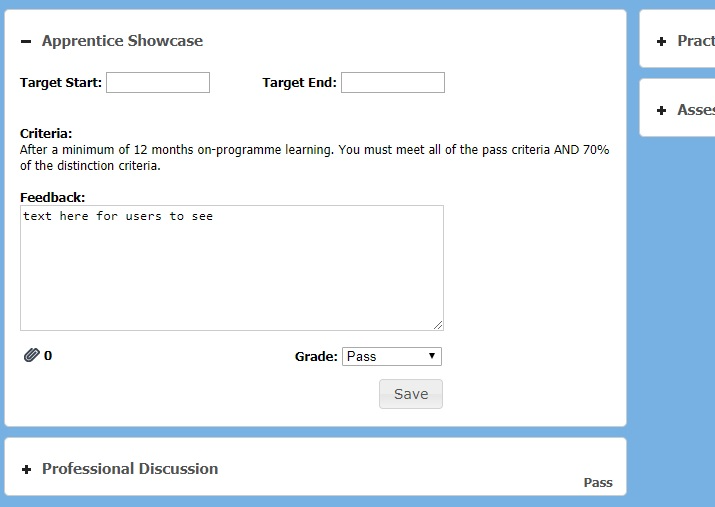
3.4 Attachments can be uploaded by clicking on the  icon, to choose one or more attachments, and click 'Add'
3.5 To save any changes click 'Save'
4. Giving Access to an IA/EPA
The blue tab can be shared with one or more Independent Assessors / End Point Assessors at anytime. The IA will only be able to access this portfolio tab, and only the evidence which is shared with the blue tab:
4.1 Obtain the IAs Ecordia ID from the IA(s) to be linked
4.2 Go to the portfolio and select the blue tab
4.3 Click on the 3 dots located in the top right of the page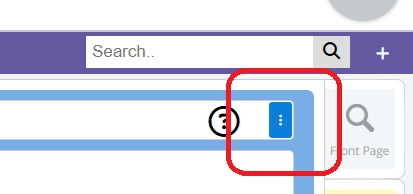 4.4 A pop-up will appear where you can select an IA from the list and click 'Assign', repeat this step until all IAs have been linked
4.5 Click 'Close'
5. To remove an IA/EPA
5.1 Go to the portfolio and select the blue tab
5.2 Click on the 3 dots located in the top right of the page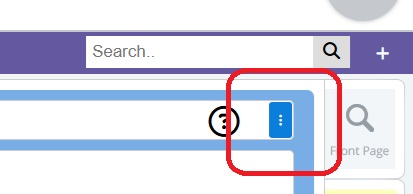 5.3 A pop-up will appear click the delete icon next to each IA you want to remove
5.4 Click 'Close'
6. Displaying units on the blue tab page for your IA/EPA
6.1 Go to Course Admin/Learning Aims
6.2 Select the Learning aim containing the unit you want displayed on the blue tab
6.3 Select the unit
6.4 Click 'Modify'
6.5 Tick the 'Display on Portfolio Blue Tab:' option
6.6 Click 'Save'
7. Gateway Dates
The Expected Gateway Date is displayed on the portfolio front page it entered, and can be only edited from the blue tab.
The Actual Gateway Date is displayed here, and any OTJ logs dated after this date will need to be approved by a centre-based user before they are included in the OTJ progress, regardless of the course setting.
8. Evidence export for EPApro
This feature requires a subscription add-on, and allows users to export evidence folders for all evidence shared to the blue tab. The export will create a zip folder containing a folder for each item of evidence, these will contain a .png file for any evidence data, and a copy of each file attachment. The zip folder can then be uploaded to EPApro, or similar system, for evidence of gateway and/or end point assessment.
To export evidence:
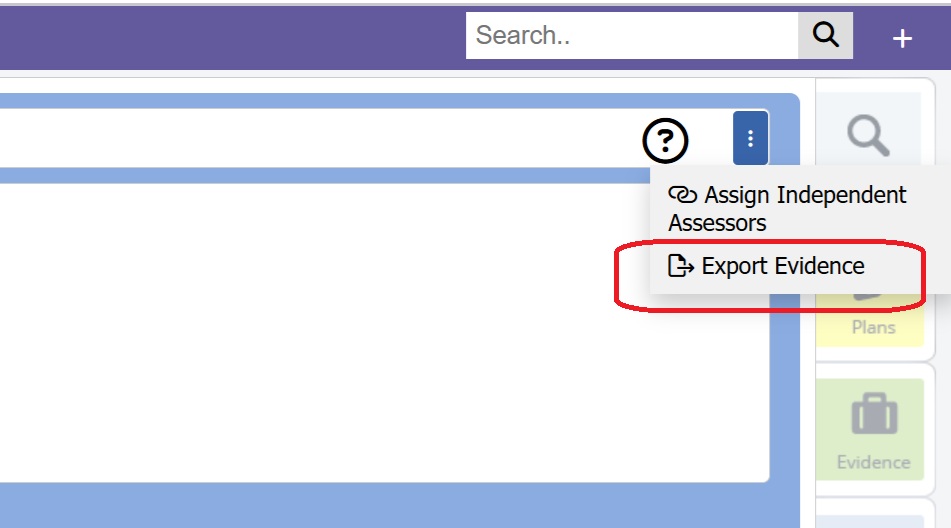
8.1 - Go to the blue tab and click on the 3 dots located in the top right of the page
8.2 - Select Export Evidence
8.3 - The zip file will be added to your browser downloads.
Contact support@ecordia.co.uk for this add-on.
Was this article helpful?
That’s Great!
Thank you for your feedback
Sorry! We couldn't be helpful
Thank you for your feedback
Feedback sent
We appreciate your effort and will try to fix the article