By clicking the menu tab "My Account" you can set your own preferences for your account, remember to click 'Update Account' to save the entry/changes
Email address - You can manage your email address by going to My Account/Preferences and, in the top section of the screen, use the 'More' button to input your email details, then click 'Update Account' to save the entry/changes.

Account Preferences
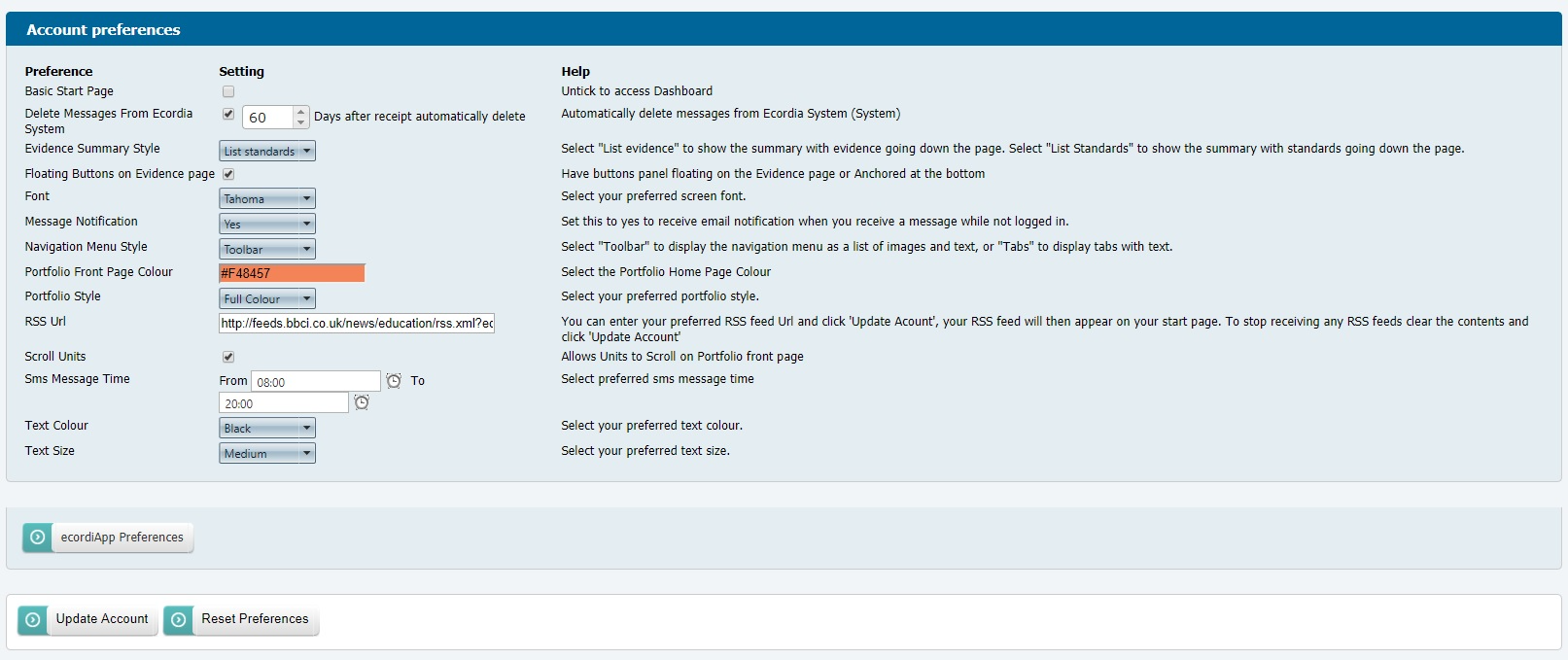
Basic Start Page - select this option to replace your Dashboard with a simple task list (not available to Candidates, Delegates and Independent Assessors).
Delete Messages from Ecordia System - from time to time you will receive automated messages from the Ecordia System to notify you of activities and scheduled tasks are complete. You can use this option to choose when these messages are to be automatically deleted from your received messages.
Evidence Summary Style - Select default displayed style for evidence summary pages.
Float Buttons on Evidence Page (Recommended) - This will allow the buttons on the evidence page to float so you do not need to scroll to the bottom of the age to access the available controls.
Font –You can change the font that appears on the system, the default is Verdana, but this can be changed to: Arial, Tahoma, Times New Roman,
Courier New, Comic Sans MS.
Message Notification - If selected you will receive email notifications of new messages on your Ecordia at the beginning of each day. Make sure
you have entered your email address correctly at the top of this page.
Navigation Menu Style - Select Toolbar for icons (recommended), or Tabs for names only
Portfolio Front Page Colour - Personalise the portfolio front page colour. This will only apply to you, other users can choose their own colour.
Portfolio Style - Select either Full Colour (recommended) is the standard style, Coloured Keyed Tabs for partial colour, or Plain for no colour. This can be useful if your selected Portfolio Front Page Colour clashes with the standard design.
Receive Task Notifications Emails - tick to receive notifications when you receive new tasks
RSS (Really Simple Syndication) URL - RSS is a family of Web feed formats used to publish frequently updated works – such as blog entries,
news headlines, audio, and video. The default URL is BBC Education news (http://newsrss.bbc.co.uk/rss/newsonline_uk_edition/education/rss.xml)
but users can enter a preferred RSS feed by entering it in the space provided.
Scroll Units - Select or deselect to allow Selected Units to scroll on the Portfolio Front Page.
Sms Message Time - choose when you want to receive SMS alerts from Ecordia
Text Colour - Choose your default text colour
Text Size - Adjust the size of the text within the Ecordia system
Was this article helpful?
That’s Great!
Thank you for your feedback
Sorry! We couldn't be helpful
Thank you for your feedback
Feedback sent
We appreciate your effort and will try to fix the article